

You go to update a plugin and get a storage warning you did not see coming. Somewhere between the product photos, the hero banners nobody resized, and the PDFs someone uploaded three redesigns ago, your media library turned into a junk drawer. This is almost always fixable without buying more space.
The problem is usually originals, not optimized copies
Most media bloat does not come from the images visitors actually see on the page. It comes from the full-size originals sitting behind them. Upload a 6000px camera photo to display at 800px wide, and the system keeps the giant original plus several generated sizes, every single time.
Check your uploads folder structure, not just the total storage number. If you are on WordPress, look inside wp-content/uploads by year and month. You will usually find the growth is concentrated in a handful of months, often tied to a specific redesign, product launch, or import.
This matters because the fix is different depending on the cause. A slow accumulation over years needs a cleanup routine. A sudden spike needs you to find and fix whatever process is dumping oversized files in, or it will just refill after you clean it.
Your hosting panel can tell you where the space actually went
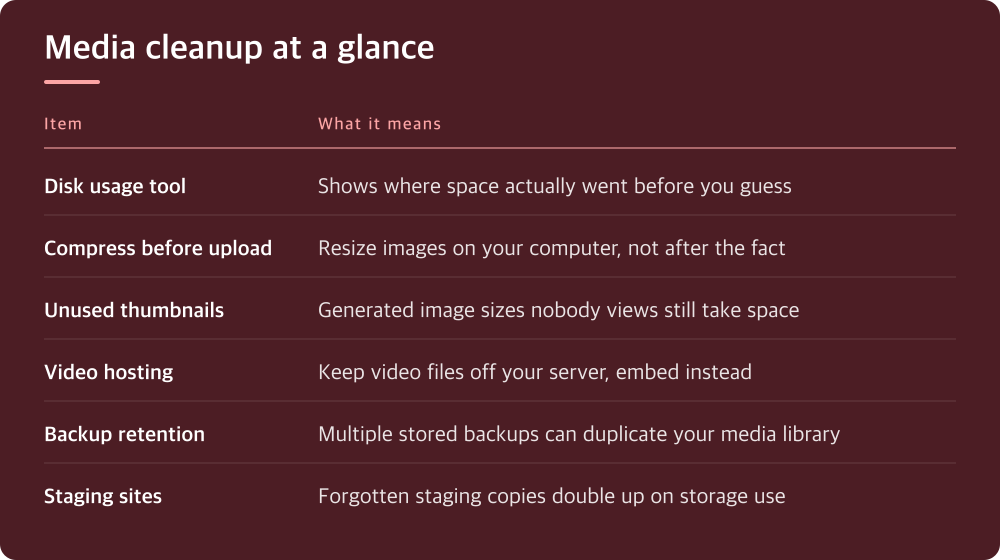
Before guessing, use the disk usage tool in your hosting control panel or server dashboard. Most panels can break usage down by directory, which will show you immediately whether media, database, logs, backups, or old core files are the real culprit.
Do not skip this step and jump straight to deleting images. Plenty of people assume uploads are the problem when it is actually years of debug logs or cache files nobody cleared. Confirm the diagnosis before you spend an afternoon sorting photos.
If your panel does not expose this clearly, ask your host’s support where to check folder-level disk usage, or use an FTP/file manager tool to sort the uploads directory by size. Every provider labels this differently, so look for terms like ‘disk usage,’ ‘storage breakdown,’ or ‘file manager’ in your dashboard.
Compression should happen before upload, not after the fact
The cheapest fix is preventing bloat at the source. Resize and compress images on your computer or in your CMS’s media settings before they ever get uploaded, rather than relying on a plugin to clean up afterward. Check your platform’s recommended image dimensions for the areas you are uploading to, and match your exports to that.
If you are on WordPress or a similar CMS, there are image optimization plugins and built-in settings that compress on upload automatically. Compare them on what they actually do: lossless vs lossy compression, whether they touch existing library images or only new ones, and whether they strip metadata you might still need.
Video is the other common offender. Never host video files directly on your web server if you can avoid it. Use a dedicated video platform and embed the player instead. A handful of video files can outweigh your entire image library combined.
Old revisions and generated thumbnails pile up invisibly
WordPress generates multiple thumbnail sizes for every image you upload, and keeps post revisions that can include duplicate media references. Over a few years, this adds up to real space even if you never notice it happening.
Check your media library settings for how many image sizes get generated on upload, and whether your theme or plugins are adding sizes you don’t actually use. Disabling unused sizes won’t delete past files automatically, but it stops new bloat and you can clean up the old ones with a one-time scan.
There are plugins built specifically to find and remove orphaned thumbnails and unused media, meaning files no longer attached to any published page or post. Run one of these as a scan first, review what it flags, and only then delete. Automated deletion without review is how people lose images still in use.
Backups and staging sites quietly duplicate your media library
If your host keeps multiple backup copies, or you run a staging site alongside production, your media library may effectively exist two or three times over. This is often the single biggest hidden contributor to a storage warning.
Check your hosting plan’s backup retention settings: how many backups are kept, how often they run, and whether they’re stored on the same storage allocation as your live site. This varies a lot by provider, so look in your account or hosting dashboard under backup or disaster recovery settings.
Staging environments are useful but easy to forget about. If you spun one up for a redesign and never deleted it, it’s sitting there with a full copy of your media. Find and remove staging sites you are no longer actively using.
What to actually do today
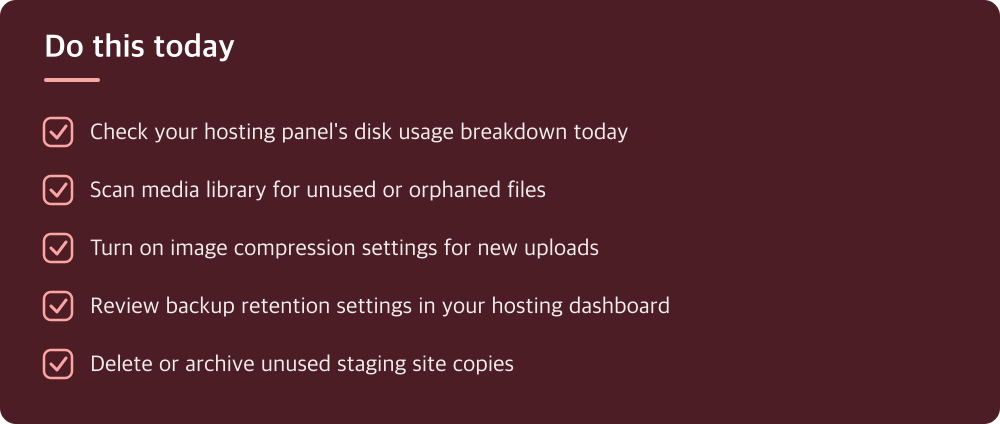
Start with the diagnosis, not the cleanup. Open your hosting panel’s disk usage tool and find out what’s actually taking up space before you touch anything.
If it is media, scan for unused files with a plugin or manual review, delete what’s confirmed unused, and turn on compression settings so new uploads stop adding to the pile. If it is backups or staging copies, adjust retention settings or remove what you don’t need.
Set a recurring reminder, monthly or quarterly, to repeat this check. Media bloat is not a one-time cleanup, it is an ongoing habit, and the sites that stay ahead of it are the ones that check regularly instead of waiting for a storage warning to force the issue.
Do this today
- Check your hosting panel’s disk usage breakdown today
- Scan media library for unused or orphaned files
- Turn on image compression settings for new uploads
- Review backup retention settings in your hosting dashboard
- Delete or archive unused staging site copies
※ This is informational and not a recommendation of any specific product or company.