
You found a theme that looks perfect in the demo and you want it live now. Slow down for twenty minutes first, because a bad theme switch can break your layout, kill your SEO, or lock you out of your own admin panel.
A full backup is the only thing standing between you and a disaster
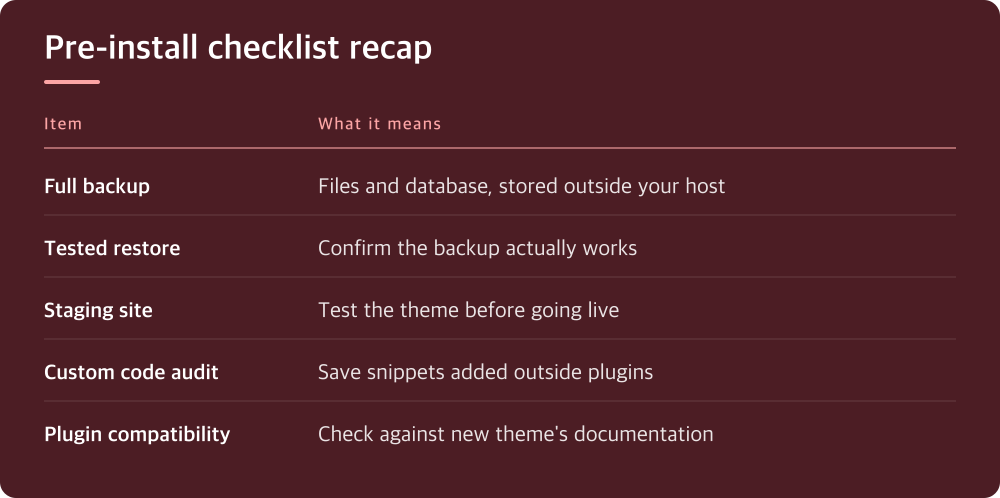
Before you touch anything, make a complete backup of your site files and database, not just one or the other. A theme switch can rewrite widget areas, menu assignments, and custom fields in ways that are hard to undo by memory.
Check whether your host or hosting panel offers one-click backups, and confirm where those backups are stored and for how long. If you’re relying on a plugin instead, trigger a manual backup rather than trusting the scheduled one from last night.
Don’t just assume the backup worked. Download a copy somewhere outside your hosting account, like local storage or a separate cloud drive, so you have it even if the server itself has problems.
A backup you haven’t restored is just a hope, not a plan
Having a backup file sitting there means nothing if you’ve never checked that it actually restores. Many people discover their backup was incomplete or corrupted only after they desperately need it.
If your hosting panel or backup plugin supports a staging environment, use it. Restore the backup there and confirm the site loads, the database connects, and nothing is obviously missing.
If you don’t have a staging option, at minimum open the backup file and verify it contains both a database export and a full set of theme, plugin, and uploads folders. An empty or tiny file is a warning sign, not a reassurance.
Test the new theme on a staging copy, not your live site
Never install and activate an untested theme directly on the site your visitors are using. Even well-coded themes can conflict with specific plugins or customizations you’ve made over time.
Set up a staging site through your hosting control panel if one is available, or clone the site to a subdomain or local environment. This gives you a safe place to see exactly what changes before anyone else does.
Activate the new theme there and click through every page type: homepage, blog post, product page, contact form, search results. Look for broken layouts, missing images, and menus that no longer appear where they should.
Your current theme’s custom code needs a new home before you switch
If you’ve added custom CSS, PHP snippets, or tracking scripts directly into your current theme’s files, those changes disappear the moment you activate a new theme. This catches people off guard constantly.
Check your theme editor or child theme files for anything you or a developer added manually, not through a plugin. Common places to look are functions.php, the custom CSS panel, and header or footer scripts.
Move anything important into a dedicated plugin for custom code, or into your new theme’s child theme, before you make the switch. Copy-paste it somewhere safe even if you’re not sure yet where it will end up living.
Plugin conflicts show up after the switch, not before, unless you go looking
New themes sometimes rely on different hooks or markup than your plugins expect, which can break page builders, contact forms, or SEO plugins in ways that aren’t obvious right away.
On your staging copy, test every plugin that touches the front end of your site, not just the ones you use daily. Pay particular attention to page builders, caching plugins, and anything that injects content into templates.
Check the new theme’s documentation or support page for a list of plugins it’s known to work well with, and compare that against what you’re actually running. If there’s a mismatch, that’s worth resolving before, not after, you go live.
What to do today before you install anything
Start with the backup, confirm it restores, then build a staging copy of your site where you can test the new theme without any risk to visitors. This sequence matters more than how good the theme looks in the preview screenshots.
Walk through your current site’s custom code, document what’s there, and have a plan for where it goes before you activate anything new. Then test plugins on staging and only move to your live site once everything checks out.
None of this takes long compared to the time you’ll spend fixing a broken live site. Treat the prep work as part of the install, not an optional extra step.
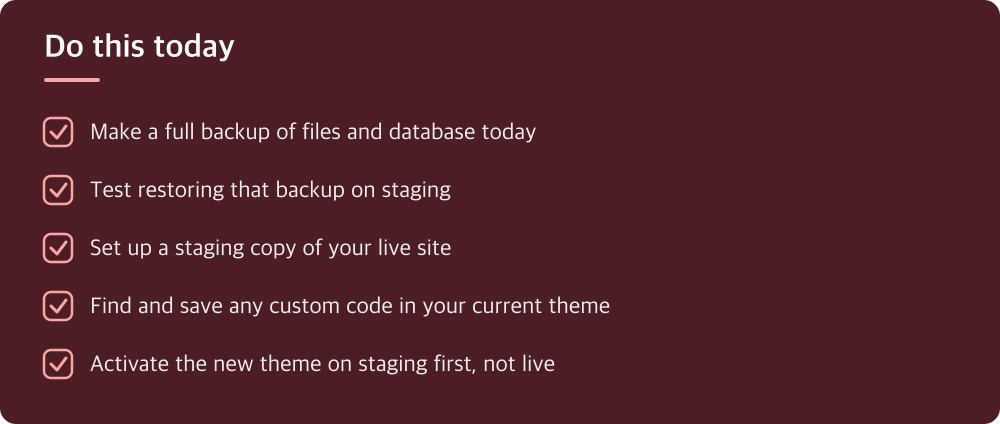
Do this today
- Make a full backup of files and database today
- Test restoring that backup on staging
- Set up a staging copy of your live site
- Find and save any custom code in your current theme
- Activate the new theme on staging first, not live
※ This is informational and not a recommendation of any specific product or company.