

Your site just threw up a wall of white with some cryptic text on it, or worse, it’s just blank. Before you panic and start randomly deactivating plugins, read what the error is actually telling you — it’s usually more specific than it looks.
The white screen of death is not actually blank, you’re just not looking at it right
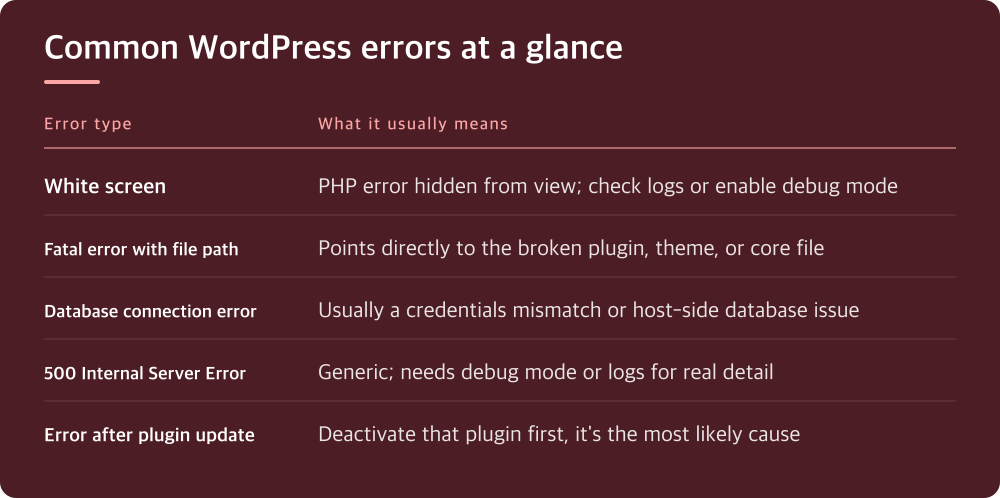
A white screen with no text means PHP errors are being hidden from the browser, not that nothing happened. The error is still being logged somewhere — it just isn’t being shown to visitors, which is correct behavior for a live site but unhelpful for you.
Check your hosting control panel for an error log, usually under a section labeled something like ‘Logs’ or ‘Error Logs.’ If you have file access via FTP or a file manager, look for a file named error_log or debug.log in your WordPress root or wp-content folder.
If nothing exists yet, you can temporarily turn on WordPress’s own debug display by editing wp-config.php. Add or change the line defining WP_DEBUG to true, and add a line for WP_DEBUG_LOG so errors get written to a file instead of just flashed on screen. Turn both off again once you’re done — leaving debug mode on a live site exposes file paths and plugin details to anyone who looks.
The error message usually names the exact file and line number — start there, not at the homepage
A typical fatal error looks like ‘Fatal error: Uncaught Error: Call to undefined function X() in /path/to/wp-content/plugins/some-plugin/file.php on line 42.’ That line is not decoration. It’s telling you precisely which file broke and where.
Look at the folder path first. If it points to wp-content/plugins/something, the problem is almost certainly that plugin, possibly after an update that conflicted with your PHP version or another plugin. If it points to wp-content/themes/something, it’s your theme. If it points to wp-includes or wp-admin, it’s core WordPress, which is rarer and usually means a bad update or a corrupted file.
Resist the urge to read the error as a vague omen. ‘Call to undefined function’ almost always means a plugin or theme is trying to use a function that was removed, renamed, or belongs to another plugin that’s now deactivated. ‘Allowed memory size exhausted’ means exactly what it says — something is using more memory than your hosting plan allows, and you need to find what, not just raise the limit and hope.
Database connection errors are rarely about your database being ‘broken’
‘Error establishing a database connection’ is one of the most common WordPress errors and also one of the most misread. It almost never means your data is gone. It usually means WordPress can’t reach the database server, which has a short list of actual causes.
Check wp-config.php for the database name, username, password, and host values. If you didn’t change anything recently, this file is probably fine, but it’s worth confirming against what your hosting panel shows for the database credentials. A password reset on the database side without updating wp-config.php is a common cause.
The other frequent cause is the database server itself being overloaded or down, which is a hosting-side issue, not a WordPress issue. Check your host’s status page or open a support ticket and ask directly whether the database server was under load or restarted around the time the error started. If they can see server-level logs that you can’t, ask them to check those before you start changing files.
A 500 error without a message is WordPress asking you to turn on debug mode, not hide the problem
An Internal Server Error (500) with no further detail is the least informative error WordPress can give you, and it’s also the most common one people give up on too early. The fix is almost always to get more detail out of it before trying any fix.
Beyond enabling WP_DEBUG as described earlier, check your server’s error log directly — many hosts separate PHP errors from the generic 500 response shown to visitors. Your hosting panel may have a dedicated ‘PHP error log’ viewer that shows more than wp-config.php debug settings will.
A corrupted .htaccess file is a classic cause of unexplained 500s, especially after a plugin that touches permalinks or redirects. Renaming .htaccess temporarily (so WordPress regenerates a default one by resaving permalink settings) is a low-risk way to rule this out without deleting anything permanently.
Deactivating everything to find the culprit is a method, not an admission of defeat
If the error message doesn’t clearly name a plugin or theme file, the systematic approach is to rename your plugins folder via FTP or file manager, which deactivates all plugins at once, and see if the site loads. If it does, the problem is a plugin, and you reactivate them one at a time until the error comes back.
Do the same with themes if plugins aren’t the issue — switch to a default WordPress theme temporarily and see if the error clears. This isn’t guesswork, it’s elimination, and it works because WordPress errors are almost always caused by code conflicts, not core WordPress rot.
Keep a copy of your error message or a screenshot before you start deactivating anything. Line numbers and file paths can shift or disappear once you start making changes, and you’ll want that original error to compare against once you’ve found and fixed the cause.
What to do today if your site is throwing an error right now
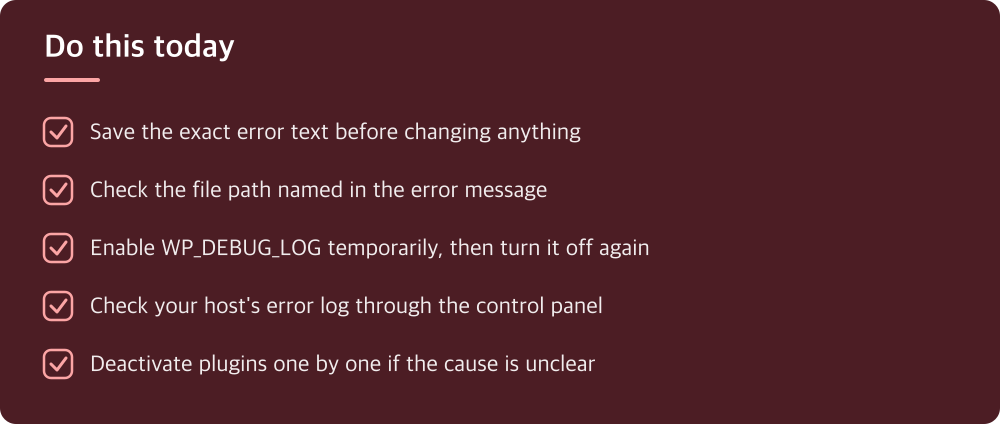
Copy the exact error text somewhere safe before doing anything else — you’ll lose context once you start changing things. Then check whether it names a specific file path; if it does, you already know whether to look at a plugin, a theme, or core.
If there’s no useful detail, turn on WP_DEBUG_LOG in wp-config.php and reload the page once, then turn it back off and read the log file it created. From there, use the plugin-deactivation method to isolate the cause rather than guessing at fixes based on the error’s general category.
Do this today
- Save the exact error text before changing anything
- Check the file path named in the error message
- Enable WP_DEBUG_LOG temporarily, then turn it off again
- Check your host’s error log through the control panel
- Deactivate plugins one by one if the cause is unclear
※ This is informational and not a recommendation of any specific product or company.