

Your site is slow or throwing errors, and the plan you bought says ‘unlimited’ everything. Somewhere in that provider’s panel or terms page is a cap you didn’t notice, and it’s probably what’s actually biting you.
The headline number is marketing, the real limits live in the fine print
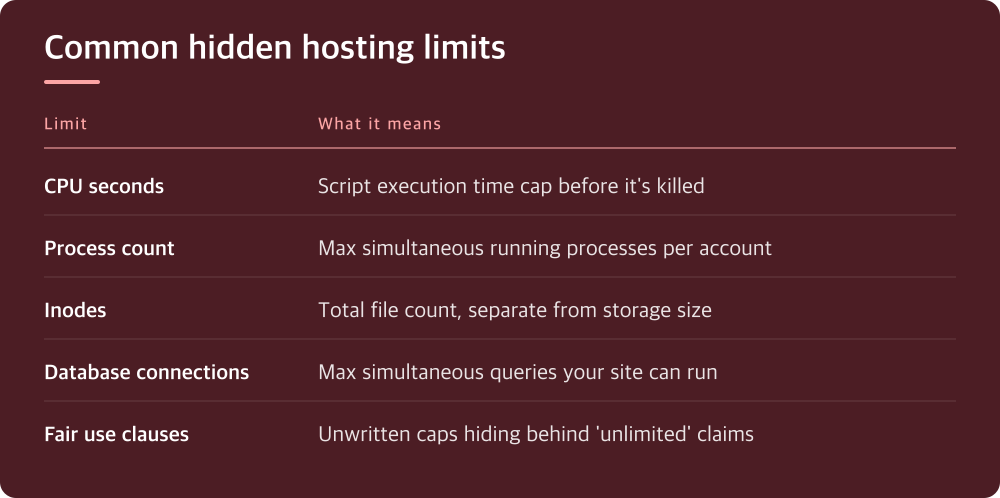
Hosting plans advertise storage, bandwidth, or ‘unmetered’ traffic because those sound generous and are easy to compare at a glance. But almost every shared and even many VPS plans enforce limits on things that never make the pricing page: CPU seconds per process, concurrent connections, number of running processes, I/O operations per second, or inodes (the count of individual files, not just their total size).
If you’ve ever gotten a vague ‘resource usage exceeded’ email with no specifics, this is why. The provider is enforcing a limit that exists in their acceptable-use policy or a support article, not in the plan comparison chart you looked at before buying.
Unlimited storage and unmetered bandwidth almost always have an asterisk
When a plan says unlimited storage, check the acceptable-use policy or terms of service for language about ‘primary use,’ ‘backup storage,’ or ‘reasonable use.’ That’s the real limit, and it’s enforced manually or algorithmically when you stand out from average usage patterns.
Same with unmetered bandwidth: look for mentions of concurrent connections, request rate limits, or a clause about suspending accounts that affect ‘overall server performance.’ The word unmetered describes the billing model, not a guarantee of unrestricted use.
The way to find these is to search the provider’s documentation and legal pages for words like fair use, throttle, suspend, or exceed, rather than trusting the plan comparison table alone.
Small file counts can take you down before storage space does
Inode limits catch people off guard because they have nothing to do with how many gigabytes you’re using. A WordPress site with a large media library, cached files, and plugin-generated logs can hit a file-count ceiling while using a small fraction of its storage allowance.
Check your hosting control panel for an inode usage meter, often under disk usage or resource usage. If you don’t see one, ask support directly what your inode limit is and how close you are to it, since this is rarely displayed as prominently as disk space.
If you’re close to a limit, caching plugins, log rotation settings, and old backup files are usually the first places to look for cleanup, since they tend to generate large numbers of small files.
CPU and process limits explain the crashes that storage and bandwidth don’t
If your site intermittently throws 500 errors or just hangs under moderate traffic, and you’ve ruled out storage and bandwidth, the next suspect is CPU time or simultaneous process limits. Shared hosting environments often cap how many processes a single account can run at once, or how much CPU time a script can consume before it’s killed.
These limits exist to keep one account from degrading performance for everyone else on the same server, which is reasonable, but it means a traffic spike or a poorly optimized plugin can trip a wall you never knew existed. Look in your hosting panel for sections labeled resource usage, process manager, or CPU throttling, and check if there’s a log of limit violations.
If you can’t find this information in your own panel, that’s worth asking support about directly: ask what your process and CPU limits are, and whether you’re hitting them, before you assume you need to upgrade.
Database connection caps are invisible until the site falls over under load
A website that works fine for one visitor but breaks during a traffic spike is often hitting a database connection limit, not a bandwidth or storage ceiling. Each page load can open one or more database connections, and most hosting tiers cap how many can run simultaneously.
This is especially relevant for WordPress sites, where plugins and themes can each open their own queries. A caching plugin that reduces database load is often a more effective fix than upgrading your plan, if the real constraint is connection count rather than raw server power.
Check your hosting provider’s documentation for database connection limits, and compare that against what your traffic patterns actually demand, rather than guessing based on the plan name alone.
What to do today: find the limits before they find you
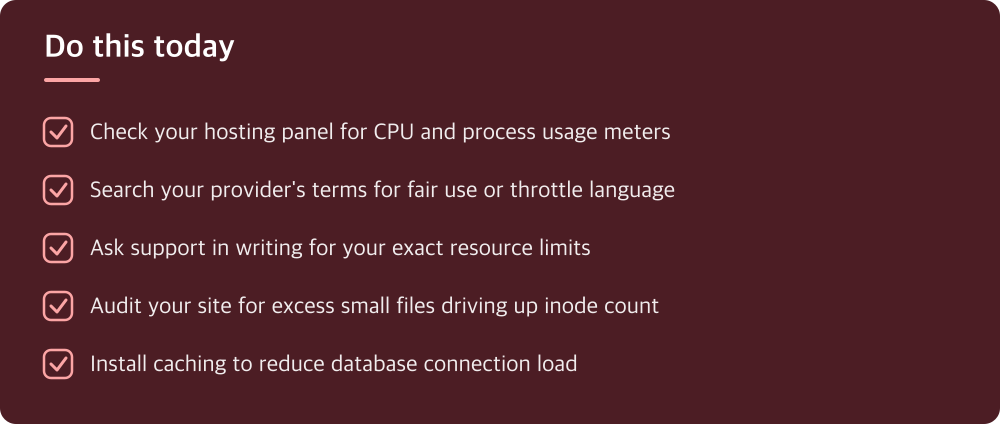
Start by logging into your hosting control panel and looking for every resource usage meter available, not just the ones highlighted on the dashboard. Most panels bury CPU, inode, and process limits a click or two deeper than storage and bandwidth.
Then pull up your provider’s acceptable-use policy and terms of service and search for words like fair use, throttle, suspend, and limit. This is where the real ceilings live, and it takes ten minutes to read through.
Finally, if anything is unclear, ask support directly and in writing: what are my CPU, process, inode, and database connection limits, and how close am I to each one. A specific answer in writing is worth more than any marketing page.
Do this today
- Check your hosting panel for CPU and process usage meters
- Search your provider’s terms for fair use or throttle language
- Ask support in writing for your exact resource limits
- Audit your site for excess small files driving up inode count
- Install caching to reduce database connection load
※ This is informational and not a recommendation of any specific product or company.