
Your site was fast until you installed twelve plugins to solve twelve small problems, and now it crawls. The fix isn’t deleting everything and starting over — it’s learning to evaluate a plugin before it ever gets activated.
Every plugin you add is a loan against your page speed
Plugins don’t just add features, they add code that has to load, run, and sometimes query your database on every single page view. Even a plugin that looks idle in the dashboard can be loading CSS and JavaScript files on pages where it does nothing useful.
The problem compounds. Ten plugins each adding a small delay doesn’t add up to a small total delay — requests queue, scripts block rendering, and database queries pile up. You don’t notice the first few plugins. You notice the tenth one, but by then you can’t tell which of the ten is actually the problem.
Think of each plugin as a recurring cost, not a one-time install. You’re paying for it on every page load, every visitor, every day it stays active — whether or not anyone is using the feature it provides.
Check what a plugin loads before you check what it does
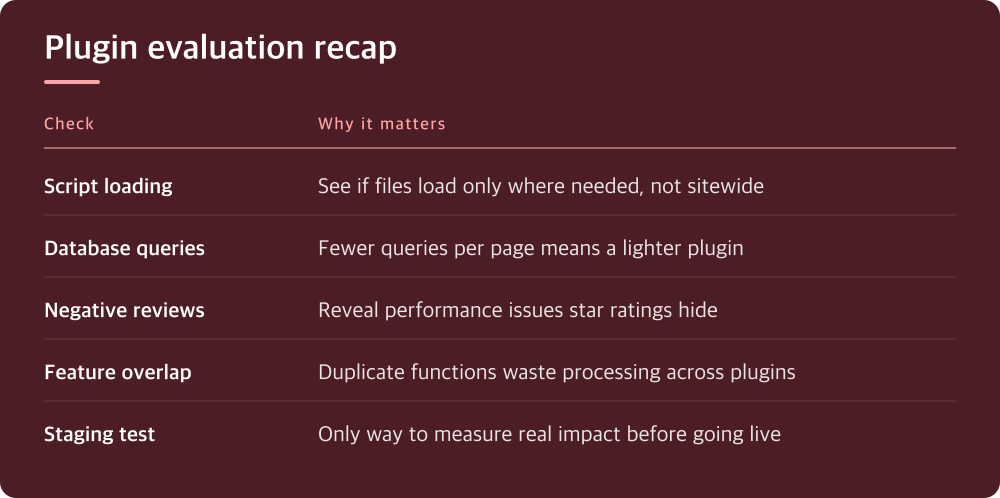
Before installing anything, look at whether the plugin loads its scripts and styles sitewide or only on the pages where it’s needed. A contact form plugin that loads its CSS and JS only on the contact page is doing it right. One that loads those files on every page, including your homepage and blog posts, is dragging down pages that never touch the form.
You can check this yourself with your browser’s developer tools. Open the Network tab, load a page that shouldn’t need the plugin, and see if its files show up anyway. If they do, that’s a mark against the plugin regardless of how good its feature set is.
Also look at how many database queries the plugin adds. Some plugin developers publish this information, others don’t — if they don’t, you can test it with a query monitoring plugin on a staging copy of your site before committing to it on the live one.
Reviews and star ratings tell you about features, not speed
A plugin can have thousands of five-star reviews and still be a performance liability, because most users leave reviews based on whether the feature worked, not whether it was lightweight. Popularity is a signal of usefulness, not efficiency.
Read the negative reviews specifically, and search them for words like “slow,” “timeout,” “server,” or “crashed.” That complaint pattern tells you more than the overall star rating does.
Check the plugin’s support forum, not just its reviews, and look at how recently the developer responded to performance complaints and whether they acknowledged or dismissed them. A developer who argues with every slowness report is not one you want to depend on.
Overlapping plugins are doing the same job twice and charging you for both
It’s common to end up with an SEO plugin that also does redirects, a caching plugin that also does image optimization, and a security plugin that also does backups — each duplicating work another plugin on your site is already doing. Every overlap is wasted processing.
Before adding a new plugin, check what your existing plugins already cover. Look through each plugin’s settings page or feature list, not just its marketing name, because plugins often expand far past their original purpose over time.
When you find overlap, pick one plugin to handle that function and turn the feature off everywhere else. Most plugins let you disable specific modules without deactivating the whole plugin, which keeps you from losing other features you actually use.
Test on a staging site before you test on your visitors
The only honest way to know a plugin’s real impact is to install it on a staging copy of your site and measure page load before and after. Most hosts provide a staging environment in your hosting panel — check there first instead of testing changes on your live site.
Use the same performance testing tool each time so your comparisons are consistent, and test the actual pages your visitors use most, not just the homepage. A plugin that’s harmless on your homepage can be expensive on a page with a lot of content or a complex layout.
Give it more than a single test. Run the comparison two or three times, because server load and network conditions vary and a single measurement can mislead you into blaming or clearing a plugin unfairly.
What to do with your plugin list today
Open your plugins page right now and list every plugin you have active, along with what each one actually does for your site. If you can’t remember why a plugin is there, that’s your first candidate for removal.
Deactivate anything you genuinely don’t need, then test your site speed again before deciding whether to reinstall anything. You’ll often find the site feels faster immediately, which tells you how much dead weight was sitting there.
For plugins you’re keeping, check their settings for options to limit where their scripts load, and turn off any modules you aren’t using. This single step often recovers meaningful speed without giving up any feature you rely on.
Do this today
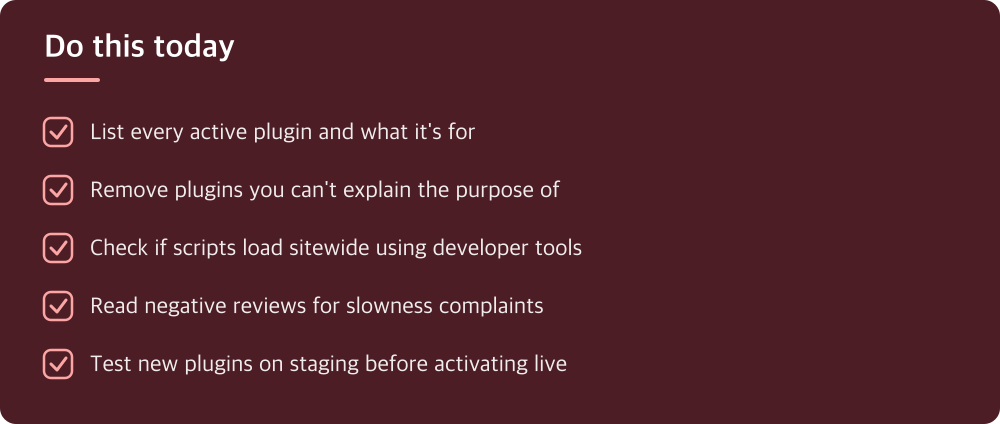
- List every active plugin and what it’s for
- Remove plugins you can’t explain the purpose of
- Check if scripts load sitewide using developer tools
- Read negative reviews for slowness complaints
- Test new plugins on staging before activating live
※ This is informational and not a recommendation of any specific product or company.