
You ran a scan because something felt off, or maybe it’s just routine maintenance, and now you’re staring at a wall of red flags and words like ‘critical’ and ‘malicious payload.’ Most of what’s in that report is not an emergency. Here’s how to actually read it.
The word ‘critical’ gets used for things that are not actually critical
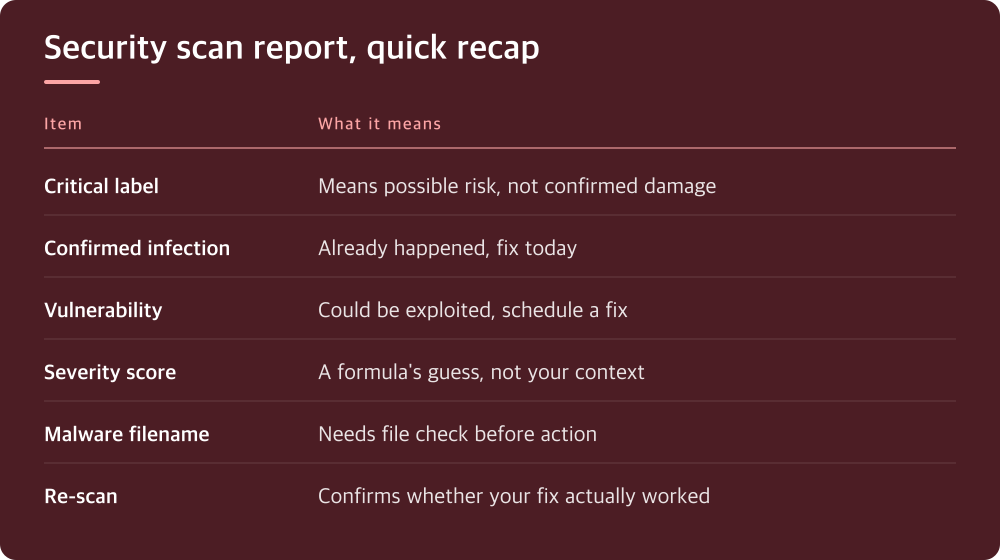
Scanners are built to flag anything that could be a problem, not just things that are a problem right now. A plugin with a known vulnerability from two years ago that you’re not even using the vulnerable feature of will often get the same red ‘critical’ label as an actual backdoor someone planted on your server last night.
This isn’t the scanner lying to you. It’s the scanner being cautious, because the people who build them would rather over-flag than miss something. The cost of that caution is that your report reads like a five-alarm fire when it’s mostly smoke from a candle.
Before you do anything else, separate the findings into two piles in your head: things that mean someone or something has already done damage, and things that mean damage is possible if left alone. Those two piles require completely different levels of urgency.
Confirmed infections and open vulnerabilities are not the same category
A confirmed infection means the scanner found code, files, or behavior that shouldn’t exist — a file that was modified outside of a normal update, a script injecting spam links, an admin account you didn’t create. This is the pile that needs attention today.
A vulnerability, on the other hand, is a weakness that could be exploited but hasn’t been, as far as the scan can tell. Outdated software, missing security headers, weak file permissions — these matter, but they’re a to-do list item, not a 911 call.
Most scan reports mix both categories together in one list sorted by severity score, which is exactly why they’re hard to read calmly. Go through the report once just to sort findings into ‘this already happened’ versus ‘this could happen,’ before you react to any single line.
Severity scores are a starting point, not a verdict
Those numeric or color-coded severity ratings (critical, high, medium, low) are generated by a formula, and the formula doesn’t know your specific site. A ‘critical’ rating on an outdated plugin you deactivated months ago is nearly meaningless. A ‘medium’ rating on something touching your login page deserves more attention than the label suggests.
Context the scanner doesn’t have: whether the affected software is actually active, whether it’s internet-facing, and whether you store anything sensitive through it. You have that context. Use it to re-rank the list in your own head before deciding what to fix first.
If your scan tool lets you click into each finding for detail, do that for anything rated high or critical. The one-line summary is written for scanning quickly, not for understanding what’s actually wrong.
Check if the problem is still there before you panic about when it started
Some scans show historical findings — things flagged in a previous scan that may already be fixed. If your report doesn’t clearly separate ‘currently detected’ from ‘previously detected,’ check your scanning tool’s dashboard or settings for a status filter.
This matters because a lot of panic comes from re-reading an old finding as if it’s new. If you updated a plugin last week and the scanner ran this week, a vulnerability tied to the old version might still show up in a report pulled from cache, or in a summary email that wasn’t refreshed.
When in doubt, run the scan again and compare the two results side by side. If something present in Monday’s scan is absent in Wednesday’s, it was either fixed or it was a false positive to begin with — either way, it’s off your urgent list.
Malware findings need confirmation, not just a scary filename
When a scanner reports malware, it usually gives you a file path and a signature name like ‘PHP.Backdoor.Generic’ or similar. The name is designed to tell a security researcher something, not to tell you whether your site is actively compromised right now.
Open the file path if you can access it through your hosting file manager or FTP, and look at when it was modified. A file with a recent modification date you don’t recognize, sitting in a folder where it shouldn’t be, is a real concern. A flagged file that’s part of a theme or plugin’s original codebase and hasn’t changed since install is more likely a false positive or an outdated detection rule.
If you’re not comfortable reading code, this is the point where it’s worth asking your hosting provider’s support team to look, since many hosts offer malware cleanup help or can at least confirm whether a file looks legitimate. Check your host’s support documentation or dashboard for how they handle this before assuming you have to fix it yourself.
What to actually do with the report in front of you
Start by changing any passwords the scan suggests might be compromised, especially admin and hosting account logins, since this costs nothing and closes an easy door regardless of what else is going on. Then update anything flagged as outdated software, starting with whatever is internet-facing like plugins, themes, and your core platform.
For anything labeled malware or a confirmed infection, don’t try to guess — verify the specific file and its modification date before deleting anything, since removing the wrong file can break your site without fixing the actual problem. If you have a recent backup, this is also the moment to confirm it exists and that you know how to use it, not after you’ve already started making changes.
Finally, re-scan after you’ve made changes. A second scan that comes back cleaner tells you your fixes worked; one that doesn’t tells you there’s something the first pass missed, and that’s worth escalating to your host’s security support rather than continuing to guess on your own.
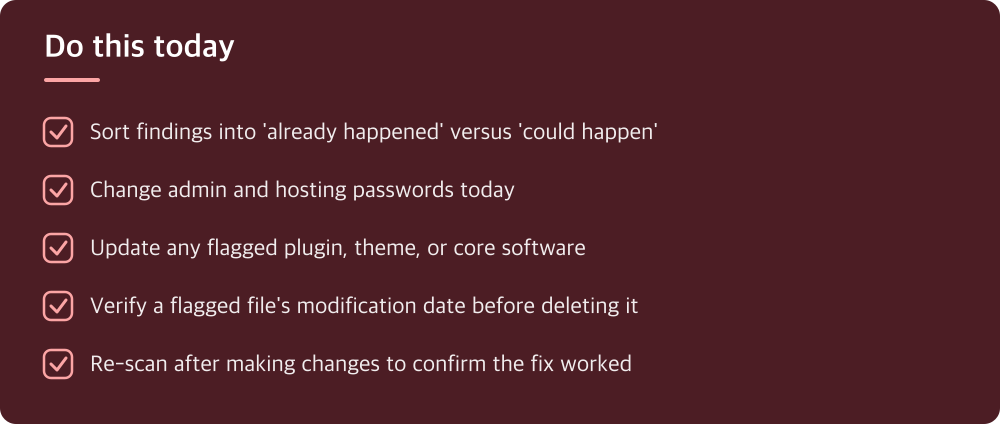
Do this today
- Sort findings into ‘already happened’ versus ‘could happen’
- Change admin and hosting passwords today
- Update any flagged plugin, theme, or core software
- Verify a flagged file’s modification date before deleting it
- Re-scan after making changes to confirm the fix worked
※ This is informational and not a recommendation of any specific product or company.