

Your site was fast when it launched. Then you added more pages, more plugins, more images, more traffic, and now every page load feels like a negotiation. Performance doesn’t degrade all at once — it leaks out slowly until one day you notice.
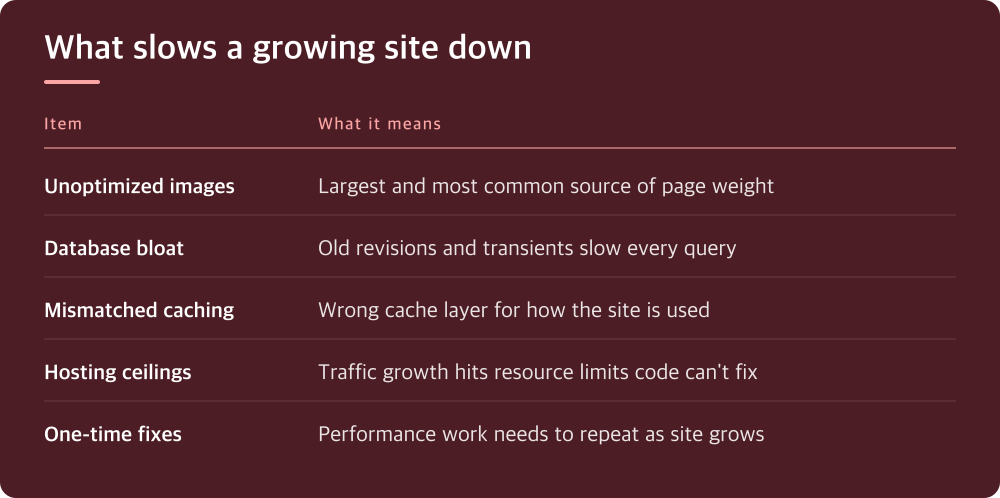
The slowdown is usually additive, not a single cause
When a site that used to feel snappy starts dragging, people hunt for the one thing that broke it. Usually there isn’t one thing. It’s a plugin here, an uncompressed image there, a theme update that added a script nobody uses, a database table that’s been collecting spam comments for two years. Each one by itself is nothing. Together they add up to seconds.
This matters because it changes how you fix it. You’re not looking for a smoking gun — you’re doing an audit. Open your browser’s network tab or a free page-speed testing tool and look at what’s actually loading: how many requests, how much total weight, what’s blocking the page from rendering. That list is your to-do list.
Images are still the most common weight problem, even in 2024
Text and code are cheap. Images and video are not. If your site has grown through adding content — blog posts, product photos, galleries — your image weight has probably grown faster than everything else combined, because nobody goes back and optimizes old uploads.
Check whether your CMS or hosting setup compresses images automatically and serves modern formats. If it doesn’t, that’s a gap worth closing with a plugin or a build step, not something to leave for later. Also check image dimensions against how they’re actually displayed — a photo uploaded at full camera resolution and squeezed into a thumbnail with CSS is wasted bandwidth every single load.
Your database grows even when your content doesn’t
This one catches people off guard. On WordPress specifically, revisions, transients, spam comments, and orphaned metadata accumulate in the background regardless of how much new content you publish. A database that’s bloated with years of cruft makes every query — including the ones that render your homepage — slower.
Look in your hosting panel or database tool for table sizes. If you see revision tables or transient options tables that are enormous compared to your actual content volume, that’s cleanup you can do without touching anything a visitor sees. Some caching and optimization plugins handle this automatically; check what yours is actually doing before assuming it’s covered.
Caching has to match how your site is actually used
A static blog and a logged-in-user dashboard need different caching strategies, and a lot of slow sites are running the wrong one. If your pages are mostly the same for every visitor, full-page caching should be doing most of the work. If visitors are logged in, personalizing content, or hitting a cart, full-page caching either won’t apply or will actively break things.
Check what layer of caching you currently have — browser, page, object, and server-level caching are different things and most sites need more than one. Your host’s documentation will tell you what’s available at the server level versus what you need a plugin for. Don’t assume caching is happening just because a plugin is installed; verify with a cache-testing header check or dev tools.
Growth in traffic exposes hosting limits that growth in content doesn’t
A site can have lean code and still slow down if it outgrows its hosting resources. Shared hosting plans have real limits on CPU, memory, and concurrent connections, and you usually don’t notice until a traffic spike or a steady increase in daily visitors pushes past them.
Watch your hosting panel for resource usage warnings or throttling notices — most providers surface this somewhere, even on budget plans. If you’re consistently near a ceiling, the fix isn’t more optimization, it’s more headroom: compare what the next tier up or a different hosting architecture (VPS, managed hosting with more resources) actually offers against your real usage, not against marketing copy.

Build a habit instead of a one-time fix
The mistake most people make is treating performance as a project you finish. You optimize images, clean the database, fix caching, and feel done. Six months later you’re back here because the site kept growing and nothing kept watching it.
Set a recurring reminder — monthly or quarterly depending on how fast your site grows — to re-run a page speed test, check database size, and review what plugins or scripts have been added since last time. This is the only way slow creep gets caught before it becomes a real problem.
Today, run one speed test on your actual site, not a demo page, and read the specific recommendations it gives you. Then pick the single biggest flagged issue — usually images or unused scripts — and fix just that one thing before moving to the next.
Do this today
- Run a page speed test on your actual live site
- Check image file sizes against their display dimensions
- Look up database table sizes in your hosting panel
- Verify which caching layers are actually active
- Set a recurring reminder to repeat this audit
※ This is informational and not a recommendation of any specific product or company.