

Your site loads fine on your connection, but visitors across the country—or world—report it crawling. You’re not imagining things, and it’s not always your hosting’s fault. The problem is almost always where your content sits and how far it has to travel.
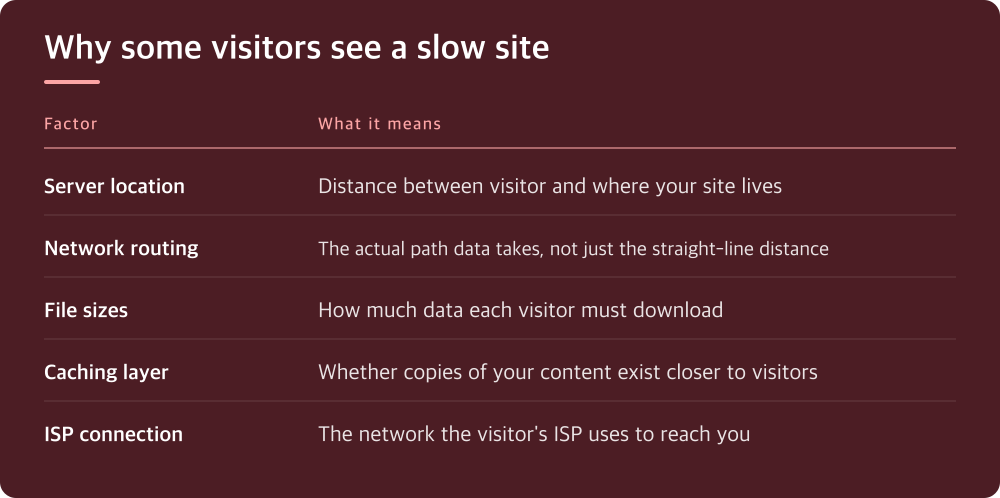
Distance and latency explain most slow-site complaints
When someone visits your site, their browser makes a request that travels across the internet to your server, waits for a response, then travels back. That round trip takes time. If your server sits in one data center on the US East Coast and a visitor is in California, their request crosses the entire country twice. That extra distance adds latency—the delay between sending a request and getting a response—and latency stacks up fast.
A visitor in New York might see your homepage in 0.8 seconds. The same site takes 2+ seconds for someone in Japan. Both are on the same server, running the same code, with the same database. The difference is purely geography. This is why a site can feel snappy locally but slow to distant visitors.
Most hosting control panels don’t show you where your data center actually is. Dig into your hosting account settings or contact support to confirm the physical location of your server. Then run a speed test from a browser in a distant location—use your phone’s mobile data from a different region, or use a free multi-location speed test tool (your host’s documentation can point you to these).
Your hosting location matters more than you think
Shared hosting, VPS, and dedicated servers all share the same problem: they’re in one place. If your audience is spread across multiple time zones or countries, some of them are always going to be far away. You can’t move your server to everyone, so you need a different approach.
This is where content delivery networks and server location flexibility come in, but your hosting plan determines what’s actually available to you. Some hosts offer servers in multiple regions; others don’t. Before you blame your host, check what your current plan actually includes. Look in your control panel or ask support directly: can you move your site to a different data center location without upgrading, or is relocation restricted to certain plans?
Even if your current host doesn’t offer multiple locations, knowing your actual server location lets you make an informed decision later. Some visitors will always be distant, but you don’t want to pay for hosting in Virginia if most of your traffic is in Europe.
Network paths get congested like roads during rush hour
Even if your server is reasonably close, the route data travels isn’t always direct. Internet traffic moves through a web of interconnected networks called Autonomous Systems (AS). Sometimes the fastest geographic path isn’t the fastest data path because of how those networks connect to each other.
A visitor in Portland might reach a server in Seattle through a fast, direct route. Another visitor might be on an ISP whose cheapest connection to your data center goes through three hops and a congested backbone link. Same server, same distance, different experience. You can’t control this directly, but you can see it happening.
Use a tool that traces network routes (called traceroute or ping tools) from different locations to your domain. These show you the actual path data takes. If you notice that certain geographic regions or ISPs consistently show slower routes or more hops, that’s a sign the problem isn’t your server capacity—it’s the path itself.
Your site’s actual file size adds up to real waiting time
A slow network path is painful, but it becomes a crisis when your site is sending too much data over that slow path. If your homepage is 5 MB and someone is on a 4G connection across the country, they’re watching a progress bar. On fiber 10 blocks away, they don’t even notice.
Check what your actual visitors are downloading. Use your hosting control panel or a performance monitoring tool to see the size of your homepage and key pages. Look at image file sizes especially—most bloated sites are carrying oversized images. A 4000 × 6000 pixel photo of your product that displays at 400 × 600 on the page is wasting bandwidth for every visitor, but it punishes distant visitors hardest.
Compress images before uploading. Use modern formats like WebP if your audience is on reasonably current browsers (check your site’s analytics to see what browsers your visitors actually use). Minify CSS and JavaScript. Lazy-load images below the fold so users don’t download them until they scroll. These aren’t hosting decisions—they’re site decisions—but they make a massive difference for slow-path visitors.
Caching at the edge fills the latency gap
If you can’t move your server to every visitor, move a copy of your content closer to them. Content delivery networks cache static assets (images, CSS, JavaScript, sometimes entire pages) in servers worldwide. When a distant visitor requests your homepage, they get it from a CDN server near them instead of waiting for the round trip to your origin server.
Most hosting providers either include CDN services or partner with one. Check your hosting control panel or documentation to see what’s available. Some plans include it standard; others charge extra. You’re looking for something that caches static content globally and can optionally cache HTML pages too. The setup is usually as simple as changing a DNS setting.
CDN costs vary wildly depending on your traffic and which provider you choose. The key question for your host: is there a CDN option built in or bundled, or do you need to sign up separately? And crucially: if you switch providers later, can you take the CDN with you or does it stay locked to your current host?
Start with what you can control today
You don’t need a full infrastructure overhaul to fix this. Start by confirming the problem isn’t something you’ve already got the power to change. Compress your images. Check your homepage file size. Run speed tests from different geographic locations and note where the actual slowdown happens—is it the network path, or is your server struggling even with local requests?
If local tests show your server is responsive but distant tests are sluggish, geography is the culprit. If everything is slow everywhere, your site itself is probably the bottleneck. These are two completely different problems with different solutions.
Once you know what’s actually slow, you can make a real decision: is the issue worth fixing with better hosting, a CDN, or site optimization? If 80% of your traffic is local, maybe it’s not. If you’re losing distant customers, it absolutely is. The difference between guessing and measuring is the difference between spending money and solving the problem.
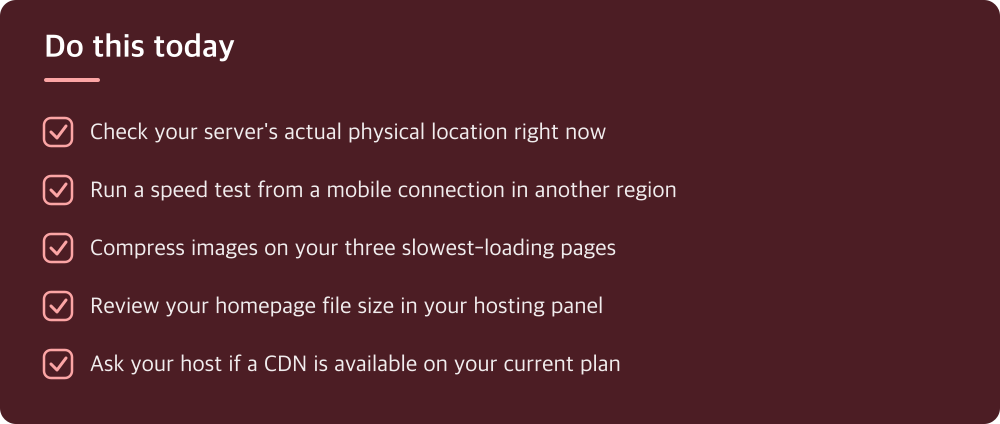
Do this today
- Check your server’s actual physical location right now
- Run a speed test from a mobile connection in another region
- Compress images on your three slowest-loading pages
- Review your homepage file size in your hosting panel
- Ask your host if a CDN is available on your current plan
※ This is informational and not a recommendation of any specific product or company.