

Your hosting account can fail in ways that don’t always announce themselves loudly. A compromise, a payment lapse, or a sudden outage can lock you out from your files, databases, and running site. Preparing now—before crisis hits—is the difference between recovering in hours and spending weeks rebuilding.
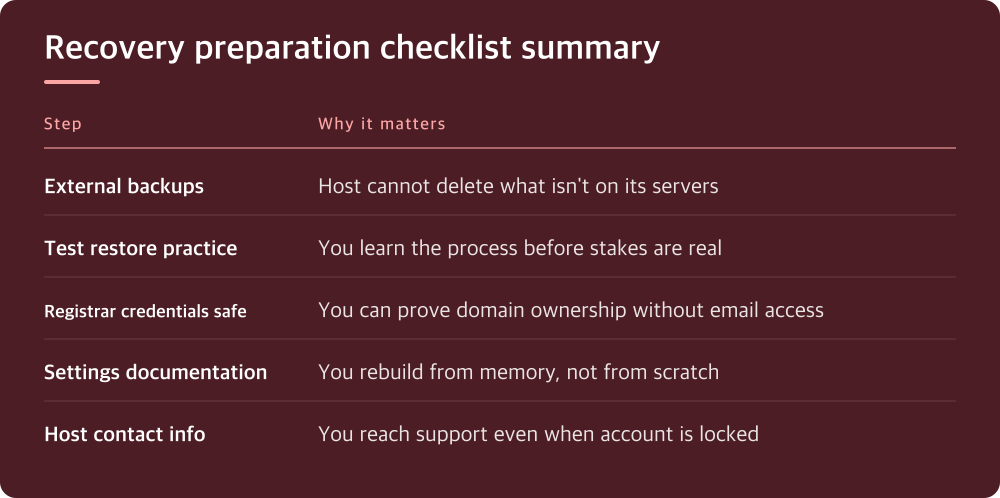
You need backups that exist outside your hosting account
A backup stored only on your host’s servers isn’t a backup. If the account is suspended, compromised, or deleted, you lose both the live site and the backup in one stroke. This is the most common mistake people make.
Set up automated backups to a separate location. That means another service, another drive, another machine—somewhere your host cannot touch. Tools like UpdraftPlus, BackWPUp, or your host’s backup download feature (if they offer it) can push copies to cloud storage you control, like Dropbox or Google Drive.
Schedule these backups weekly at minimum, more often if your site changes daily. The older your backup, the more recent content you’ll lose when you restore.
Test a restore before you need one in a real crisis
Backups only count if you can actually use them. A backup file sitting in a folder is a wish, not insurance. You need to know: Can I download this? Can I extract it? Can I actually get my site running from it?
Pick a backup from last week and run a practice restore. Use a staging environment, a local copy, or even a fresh test subdomain on the same host if you have space. Go through the whole process: download the backup file, extract it, upload it, rebuild the database if needed, update file permissions. Write down each step as you go.
When something breaks for real, you won’t have time to learn the process. You’ll be doing it from memory and adrenaline.
Keep your domain registrar login separate and secure
Your hosting account and your domain registration are two different services, even if you bought them together. A compromised host account doesn’t automatically lock your domain. But you need to prove you own it.
Write down—actually write down, on paper—your domain registrar login credentials and store them somewhere your household knows about but that isn’t your primary computer. If your email is compromised and your hosting is down, you still need a way to verify your identity or transfer the domain to a new host.
Most registrars require email verification or SMS codes. If someone has taken over your email, you’re stuck. Having a second contact email on file with the registrar is the way around this. Set that up now.
Document what’s actually running on your site right now
When you’re in recovery mode, you need to know what you’re rebuilding. That means listing your installed plugins and themes, your custom code, any third-party services your site connects to, and any unusual configurations.
Export your WordPress settings through the export tool. Note any caching plugins, security plugins, or custom headers set in your .htaccess or web.config file. If you run WooCommerce or another major plugin, jot down your payment gateway API keys are stored (not the keys themselves—just where they live).
Screenshots of your admin dashboard, your plugin list, and your theme settings take two minutes and save you hours of guessing during recovery.
Know which provider to contact and when to escalate
Before you’re locked out, log into your hosting account and find where the abuse report form lives. If your account is suspended, you’ll need a clear path to contact support. Most hosts have an emergency contact method listed on the account login page or in your invoices.
Write down your account number, the associated email, and the phone number for your host (not the sales line). Some hosts restrict account access when there’s a security flag, but they’ll still respond to phone calls and formal tickets.
If your host won’t respond or says they can’t help, you don’t have a backup—you’ll be transferring the domain to a new host and rebuilding from scratch. This is why the practice restore matters. You already know what to do.
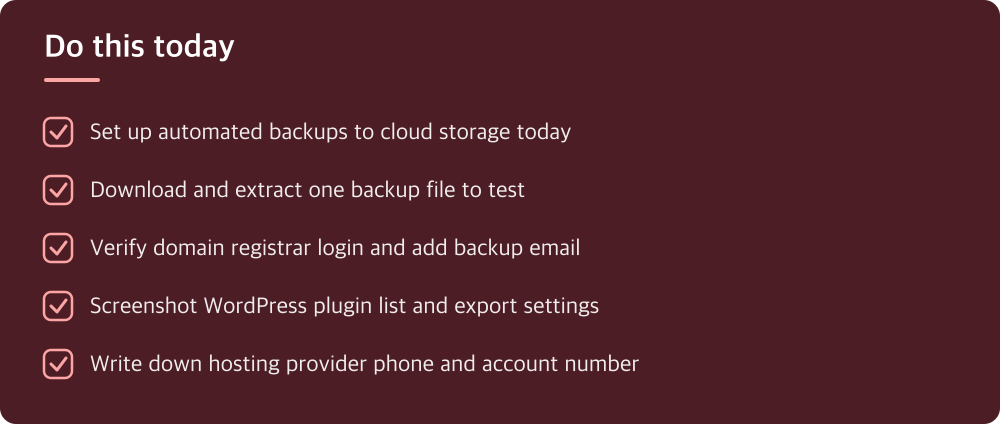
Do these four things this week
Recovery preparation isn’t complex, but it is specific. You’re not trying to become a system administrator. You’re trying to ensure that when something breaks, you’ve already done the thinking part.
Start with the easiest win: set up an automated backup to cloud storage outside your host if you haven’t already. Then download one backup file and test extracting it. Next, verify your domain registrar login works and add a backup email address to your account. Finally, take a screenshot of your WordPress plugin list and export your settings.
All of this takes less than an hour. Doing it today means when (not if) something goes wrong, you’ll recover while your competitors are still figuring out what happened.
Do this today
- Set up automated backups to cloud storage today
- Download and extract one backup file to test
- Verify domain registrar login and add backup email
- Screenshot WordPress plugin list and export settings
- Write down hosting provider phone and account number
※ This is informational and not a recommendation of any specific product or company.