
Your site is down, or you found malicious files, or your hosting provider shut you off. The panic is real, but the first few hours matter more than speed. Here’s what actually stops the bleeding.
Get offline before you make it worse
The first thing to do is nothing. Do not log into WordPress. Do not try to delete suspicious files. Do not update your password from the same computer. Every action you take while compromised can spread the infection deeper or destroy evidence you’ll need later.
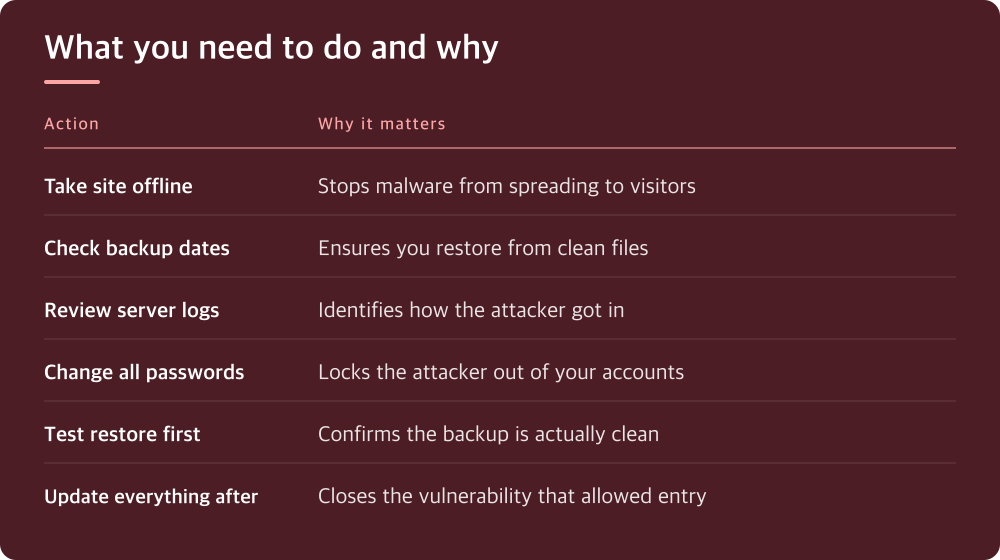
Take the site offline for now. Most hosting panels have a way to put up a maintenance page or disable the site entirely. This stops the malware from spreading to visitors and gives you breathing room to think. A down site is better than a hacked site actively infecting people.
If you cannot access your hosting panel, contact your host’s support team directly by phone. Email can be intercepted. Explain that your site has been compromised and you need to take it offline immediately. Most hosts will help with this step.
Your backups are useless unless you actually test them
Before you restore anything, you need to know if your backups are clean. Many people restore from a backup that was already infected. Check your hosting provider’s backup logs or archive—there should be dates and times. You’re looking for a backup from before the hack occurred.
Contact your host and ask them to confirm the dates when backups were created and whether they detected any malware signatures in older backups. Different hosts store this information differently, so ask where to find it in your account. Some hosts keep backups for weeks or months; others keep only a few days.
If you have backups from multiple dates, ask your host to do a test restore to a temporary directory or subdomain so you can inspect the files. Do not restore to your live site yet. This takes an hour or two but saves you from restoring a compromised backup and starting over.
Find out how they got in, or they’ll come back
A restored site means nothing if the attacker still has access. Your hosting provider should have server logs that show where the breach started. Request error logs, access logs, and any security alerts from the date the hack occurred. Ask them to walk you through what they found.
Common entry points are outdated plugins or themes, weak passwords, unpatched core files, or vulnerable code you wrote yourself. Your host’s logs will usually show the infected file paths and the requests that triggered them. This is detective work, not guessing.
If your host cannot identify the cause, you need a security consultant. It’s worth the cost. A consultant will review your code, your plugin versions, your user accounts, and your server logs to find the actual vulnerability. Do not skip this step and assume it won’t happen again. It will.
Change every password and authentication method
Once you know the breach is contained, change your hosting account password from a different device—a phone, a different computer, anything. Do not use a device that was logged into the compromised site.
Change your WordPress admin password, but do this after the restore, not before. Change your FTP or SFTP credentials if they exist. Change your database password if you can access it directly. Change any SSH keys or API tokens.
Review your hosting account for any additional admin users or email addresses you do not recognize. If you find them, delete them. Check your DNS records to make sure they point to your server, not an attacker’s server. Some hosting panels will verify this for you; ask.
Restore from the clean backup to a staging environment first
Your host should be able to restore to a test version of your site. This is a full copy of your site at a different URL so you can verify it’s actually clean before you point traffic to it. Check that all your pages load, that plugins work, and that files have the dates you expect.
Once you’ve confirmed the restore looks good, ask your host to deploy it to your live site. If they cannot do this safely, you may need to download the restored files, inspect them yourself, and upload them manually. This is tedious but necessary if you want to avoid restoring the infection again.
After the restore goes live, monitor your site for the next week. Check your logs. Set up monitoring alerts if your host offers them. If you see suspicious activity again, that means the vulnerability is still open and you did not fully close the security gap.
Secure the site before you call it fixed
Update WordPress core, every plugin, and every theme. If you’ve been putting off updates, do them now. If a plugin has not been updated in over a year, remove it and find an alternative. Outdated plugins are infection highways.
Remove any plugins or themes you do not actively use. Delete old theme files from your server. Delete any user accounts that should not exist. Set strong, unique passwords for all admin accounts and use two-factor authentication if your host or plugin system supports it.
Make a note of what happened and how you’ll prevent it next time. Set a calendar reminder to update WordPress every month. Enable automatic backups if your host offers them, or use a plugin that backs up regularly. A secure site is one you check on.
Do these things today before anything else
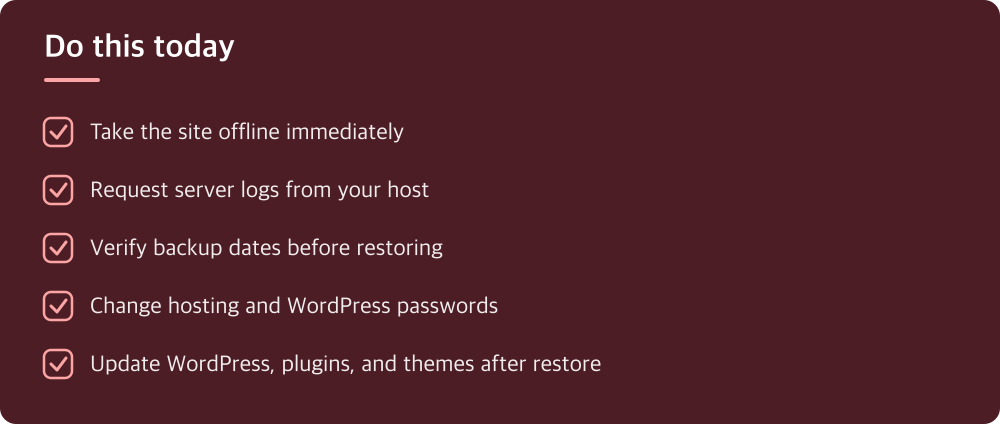
You have concrete steps to take right now, in order: take the site offline, contact your host to understand what happened, verify your backups are clean, restore from a backup created before the breach, change your passwords from a different device, and update everything. Do not try to manually remove malware from the compromised site. Do not restore a backup you have not tested. Do not assume it will not happen again.
This process takes a day or two, sometimes longer depending on your host’s responsiveness. It is slower than panicking, but it actually works.
Do this today
- Take the site offline immediately
- Request server logs from your host
- Verify backup dates before restoring
- Change hosting and WordPress passwords
- Update WordPress, plugins, and themes after restore
※ This is informational and not a recommendation of any specific product or company.