
A plugin conflict doesn’t announce itself. Your site just breaks in weird ways, and you’re left staring at a blank page or a broken feature with no clue which of your 20 plugins is the culprit. Here’s how to narrow it down without losing your mind.
You’ll know it’s a plugin conflict when nothing else explains it
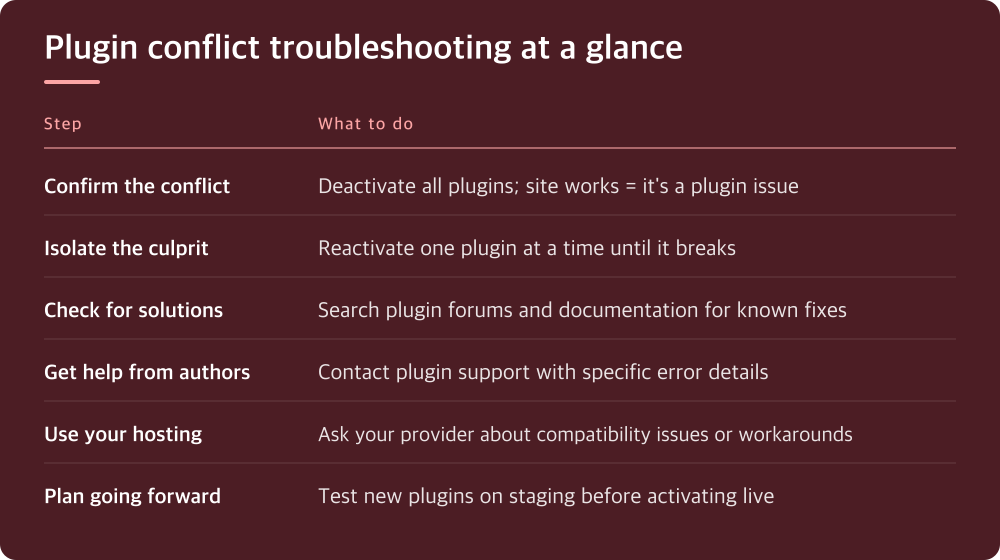
Before you start deactivating things, confirm that a plugin is actually the problem. Plugin conflicts show up as broken functionality that appeared suddenly—a form stops working, the admin bar disappears, a page won’t load, or JavaScript errors appear in the browser console. The key word is ‘suddenly.’ If something worked yesterday and doesn’t today, and you installed or updated a plugin in that window, you’re looking at a conflict.
Don’t jump to plugins if the issue started after a theme change, a WordPress core update, or a hosting environment change. Those need different troubleshooting. But if you added or updated a plugin right before things broke, a conflict is the most likely explanation.
Verify you’re actually seeing an error by checking your site in a private/incognito browser window. Sometimes it’s just a cache problem that clears itself. If the problem persists in a private window and you recently touched plugins, move to the next step.
Deactivate all plugins, then reactivate one by one to isolate the culprit
This is the most reliable method, and it doesn’t require technical knowledge. Go to your WordPress admin, navigate to Plugins, select all plugins, and use the bulk action dropdown to deactivate them at once. Your site will likely work again instantly. This confirms that a plugin is the problem—not your theme, not WordPress itself, not your hosting.
Now reactivate plugins one at a time, testing your site after each activation. Use a private browser window to avoid cache confusion. The moment your site breaks after activating a specific plugin, you’ve found your culprit. If you have many plugins, start with the ones you installed or updated most recently—they’re statistically more likely to be the problem.
Write down which plugin breaks things. You now have concrete information to work with. Don’t deactivate it permanently yet; there’s usually a fix before you resort to that.
Check the conflicting plugin’s documentation and support forum first
Before assuming the plugin is broken, search the plugin’s documentation or support forum for the exact symptom you’re seeing. Plugin authors often list known conflicts with other plugins, themes, or WordPress versions. The issue might have a known workaround or might already have a fix waiting in an update.
Look at the plugin’s support forum on WordPress.org (search the plugin name, then look for the Support tab). Filter by recent posts and search for keywords matching your problem. Other users almost always encounter the same conflicts you do. Their solutions often work immediately.
Check whether the plugin has a newer version available. If you’re running an old version, the fix might already be released. Update the plugin and test again. Sometimes it’s that simple.
Contact the conflicting plugin’s support and give them clear details
If the documentation and forums don’t have an answer, create a clear support ticket with the plugin author. Include the exact WordPress version you’re running, the conflicting plugin’s name and version, and a step-by-step description of what breaks. Mention which plugins you have active when the conflict occurs—this helps them reproduce the issue.
Plugin authors respond better when you’re specific. ‘It doesn’t work’ gets lost. ‘The checkout page shows a blank form after activating Plugin X with Plugin Y active’ gives them something to debug. The more detail you provide, the faster they can help.
While you wait for a response, you have options: disable the conflicting plugin if it’s not critical to your site, look for an alternative plugin that doesn’t conflict, or contact your hosting provider to see if they’ve encountered this conflict before and have recommendations.
If the plugin is required, contact your hosting support about the conflict
Sometimes the plugin you need causes a conflict, and neither plugin author has acknowledged the issue. Your hosting provider can often help. They see these conflicts across many sites and sometimes have workarounds—perhaps a configuration change, a specific PHP version requirement, or a known incompatibility list.
Provide your hosting support with the same information you gave the plugin author: which plugins conflict, WordPress version, exact error behavior. Some hosting providers maintain compatibility documentation that might reveal the root cause. Even if they can’t fix it directly, they might suggest a different plugin that handles the same functionality without conflict.
This step matters because sometimes the conflict isn’t the plugins’ fault at all—it’s a hosting environment issue like a PHP version mismatch or a conflicting server setting that the right technical adjustment can solve.
Keep one working setup and avoid the broken combination going forward
Once you’ve identified the conflicting plugins, you have a clear path forward. Document which plugins don’t work together. If you deactivated the conflicting plugin and your site works, your choice is made: keep it deactivated unless a future update resolves the issue. Check for updates monthly and test carefully when the plugin updates.
If you need both plugins, explore alternatives. Search for plugins with similar functionality to the conflicting one and test them one at a time to see if any work with your current setup. The WordPress plugin ecosystem is large; there’s usually more than one way to solve a problem.
From this point on, test every new plugin on a staging environment first, not on your live site. Install the new plugin, activate it alongside your existing plugins, and verify your critical functionality works. This catches conflicts before they affect your visitors. It takes ten minutes and saves hours of troubleshooting later.
Test the conflicting combination on a staging site before you give up
Before you decide to permanently remove a plugin or accept a workaround, test it on a staging copy of your site if your hosting provides one. Staging sites are clones of your live site where you can break things freely. You can test plugin combinations, updates, and configuration changes without risk.
If your hosting doesn’t offer staging, consider setting one up—it’s one of the highest-value investments you can make for site reliability. In the meantime, test updates and new plugins during off-peak hours when you can monitor the site closely.
This step ensures you’ve exhausted all options before accepting reduced functionality or removing a plugin you need. Sometimes a different configuration of settings, a different plugin order, or a specific version combination works perfectly. Staging gives you the safe space to find it.
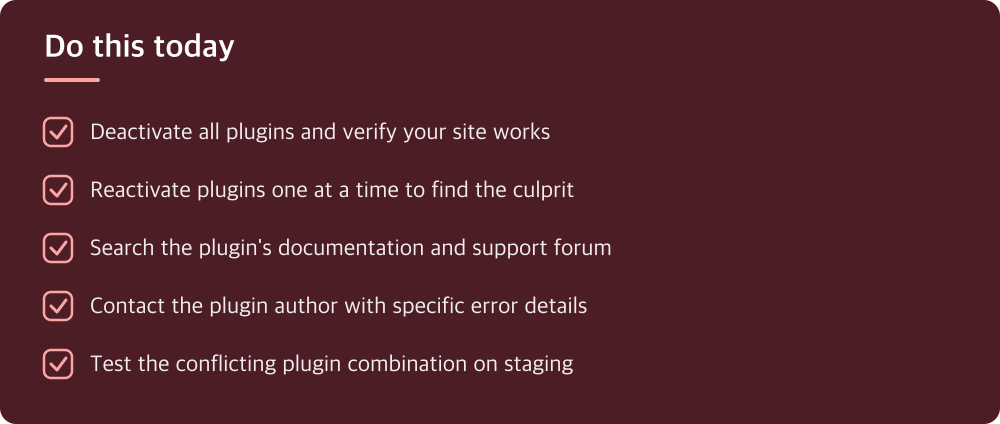
Do this today
- Deactivate all plugins and verify your site works
- Reactivate plugins one at a time to find the culprit
- Search the plugin’s documentation and support forum
- Contact the plugin author with specific error details
- Test the conflicting plugin combination on staging
※ This is informational and not a recommendation of any specific product or company.