

Your hosting provider switches control panels. Maybe they’re upgrading to something newer, consolidating platforms, or moving you to their standard system. It feels like a technical reshuffling, but it changes how you’ll manage your site every single day. Here’s what that actually means for your workflow.
You’re relearning where everything lives
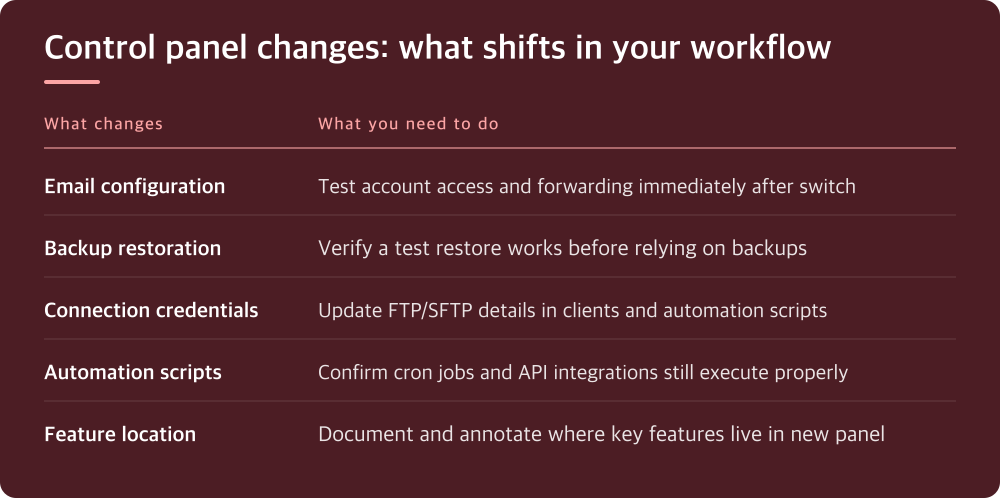
The first shock is disorientation. Every task you’ve automated in your muscle memory—accessing error logs, managing email, uploading files via the file manager, checking disk usage—now lives in a different location. The features are usually there, sometimes with identical functionality, but the layout is different. You’ll click the wrong place a few times.
This is temporary friction, but it matters. If you regularly adjust DNS settings, the new panel might bury that deeper in a menu structure. If you routinely check database usage before an update, the new interface might require extra clicks to find it. You’ll get used to it, but plan for a slower first week.
Document where your most-used features are in the new panel as soon as you have access. Take a screenshot of the main dashboard and annotate it. This sounds obvious, but most people skip it and end up searching for the same setting three times.
Your email setup might need rebuilding from scratch
Email forwarding, mailbox creation, spam filtering, and autoresponders don’t always migrate cleanly between panels. You might log in to find your email accounts still exist, but with settings reset to defaults or missing entirely. This is where a control panel change actually bites.
Before the switch, export your email configuration if the old panel allows it. Screenshot every email account, every forwarder, every filter rule. If you use a mail client like Outlook or Thunderbird on your desktop, you’ll need to re-enter the server settings anyway, but at least you’ll know what they were. Write down the exact spam filter rules and autoresponders you’ve set up—your host won’t preserve those automatically.
Test one of your email accounts immediately after switching. Send yourself an email from a Gmail account or another external source. Confirm it arrives and that replies from your account actually send. If email isn’t working on day one, you need to know before your clients start wondering why you’re not responding.
Backups might be harder to access or restore
Many control panels offer different backup options, different retention schedules, and different restoration workflows. You might go from automatic daily backups to weekly backups. The restore process might shift from a simple one-click operation to something requiring manual file extraction and database import.
This is critical: test a backup restore in the new panel before you actually need one. Don’t just assume backups are working because you see them listed. Download a backup, extract it locally if needed, and verify you can access your files and database. Some panels offer restore-to-a-subdirectory features that let you test without overwriting your live site. Use that if available.
Check your backup retention policy immediately. How long does the new host keep backups? Daily or weekly? Is there an offsite backup option? If the retention is shorter than your old setup, you might need to adjust your backup strategy or pay for additional backup services.
Your automation scripts and integrations need reviewing
If you’ve built any automation—cron jobs for backups, API calls to manage email, scripts that run on schedule—the new control panel might expose these differently or require reconfiguration. The underlying Linux cron functionality usually survives the switch, but how you access and edit cron jobs will change based on the panel’s interface.
Go through any automations you’ve set up. Write down what they do and when they run. After the switch, verify each one is still active and still working. An old backup script that silently fails is worse than no backup script—you won’t notice until you need a restore and discover the backups haven’t been running.
If you use third-party services that authenticate to your hosting account—backup tools, monitoring services, deployment scripts—check whether their API authentication method still works. Some panels change how API credentials are generated or managed.
FTP and SFTP access might operate on different ports
Depending on which panels you’re switching between, your FTP or SFTP connection details might change. The hostname might stay the same, but the port could shift. If you connect to your hosting via FTP client, you’ll need to update those credentials in your software.
If you use deployment tools, CI/CD pipelines, or automated deployment scripts that connect via SFTP, those credentials will need updating too. Before launch day, check your host’s documentation for the new FTP/SFTP connection details. Update them in your local FTP client first so you can verify access works. Then update them in any scripts or automation tools.
Don’t just assume your old FTP password still works. Many hosts reset authentication during a migration. Your username might change too. Check the host’s migration documentation specifically for connection credential changes.
Start small and document what breaks
Your migration date is coming. Here’s what actually works: pick one task you do weekly—renewing a certificate, checking disk usage, uploading a file—and rehearse it in the new panel before you’re forced to use it in production. This gives you one proven path through the new interface.
For the first two weeks after switching, keep a running list of features you can’t find or workflows that don’t work as expected. Some of these are real problems; most are just unfamiliarity. After two weeks, sort the list. The real problems you report to your host, with specifics about what you expected and what you’re finding instead. The unfamiliar ones you’ll have worked through by then.
Your host should provide a transition guide specific to your old and new panel. Read it, but read it actively—follow along in the new panel as you read. Find the features it mentions. This takes thirty minutes and saves you days of frustration.
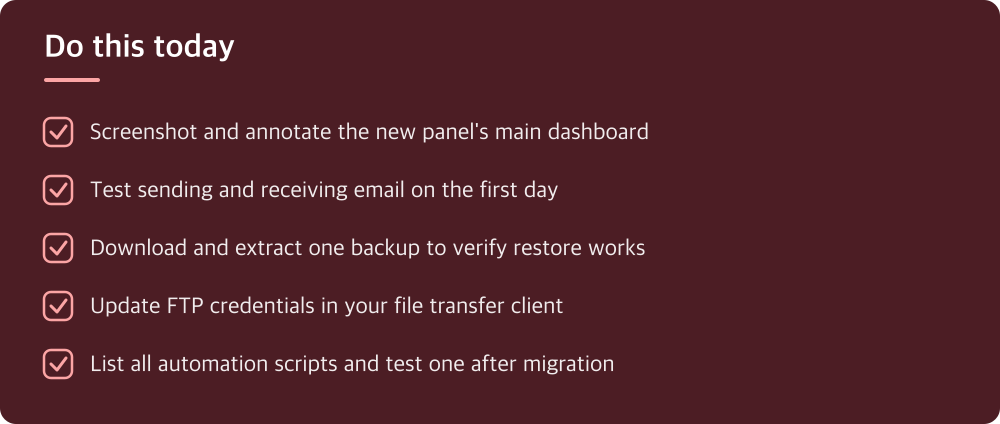
Do this today
- Screenshot and annotate the new panel’s main dashboard
- Test sending and receiving email on the first day
- Download and extract one backup to verify restore works
- Update FTP credentials in your file transfer client
- List all automation scripts and test one after migration
※ This is informational and not a recommendation of any specific product or company.