

You set up the site, it worked, and then you walked away. Six months later a plugin update breaks the checkout page, or you discover your backups have been silently failing since March. A maintenance routine fixes this, but only if it is simple enough to survive contact with your actual schedule.
Most maintenance plans fail because they are too ambitious
The usual advice is to check everything weekly: updates, backups, uptime, security scans, broken links, performance. Written down it looks responsible. In practice it is a list nobody follows past the second week, because it competes with everything else you have to do that day.
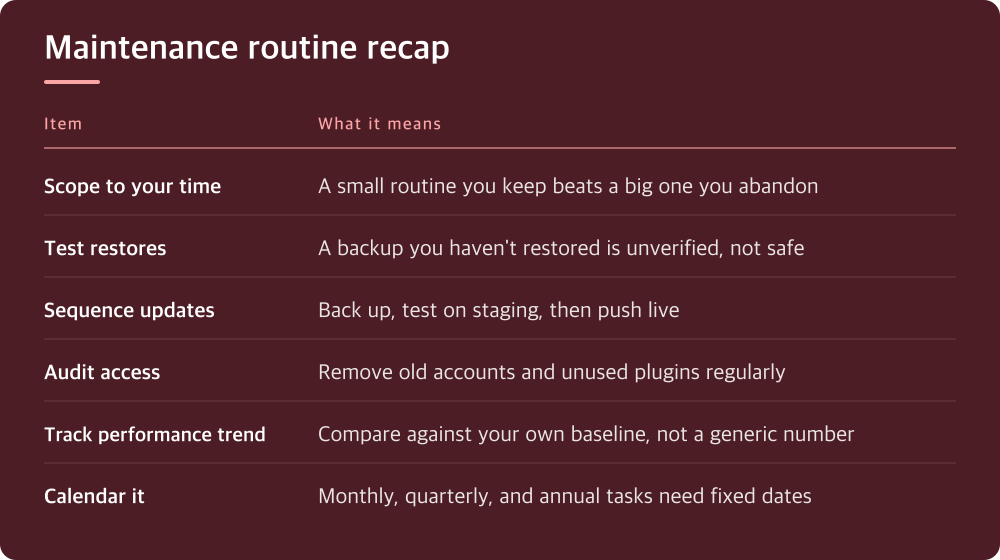
A routine you keep is one that matches your actual attention span. If you are running one WordPress site solo, a 15-minute monthly pass plus automated alerts will outperform an ambitious weekly checklist that you abandon in week three. Scope the routine to the time you realistically have, not the time a best-practices article assumes you have.
Separate tasks into two buckets: things that must happen on a schedule because nothing else will trigger them, and things that should be handled by automation or alerts because a human checking manually is the weak link. Backups and update checks go in different buckets than most people think.
Backups only count if you have tested a restore
Almost every host and every backup plugin claims automatic backups are running. The claim is not the same as the backup working. Storage can fill up silently, a backup job can fail without notifying anyone, or the backup can complete but be corrupted or incomplete.
Pick one day a quarter and actually restore a backup, either to a staging copy of the site or a local environment, not the live site. This is the only way to know your backup strategy works before you need it in a crisis. If your host or plugin does not make this easy, that is useful information about whether to keep using it.
While you’re in there, check two things: how far back your backup history goes, and how long a restore actually takes. Both numbers should be checked against your own panel or provider documentation, not assumed, because retention windows and restore speed vary a lot between hosts and plugins.
Updates need a sequence, not just a click
The instinct is to update everything the moment a notification shows up. That is how a single incompatible plugin update takes down a live site with no warning. A better sequence: back up first, update on staging or a cloned environment if you have one, check the site actually still works, then push to production.
Not every update is equal. Security patches for your CMS core and for plugins that touch forms, payments, or user accounts are the ones you should not delay. Cosmetic plugin updates or minor version bumps on things with no public-facing role can wait for your regular maintenance window instead of being done the instant they appear.
Keep a short list of what’s installed and what each thing does, because six months from now you will not remember why a particular plugin is there. When you cannot explain why a plugin exists on the site, that is a sign to test removing it, since every added piece of software is another thing that can break or get exploited.
Security maintenance is mostly about limiting what can go wrong
A lot of security advice focuses on scanning for malware after the fact, which is useful but reactive. The maintenance habits that actually prevent incidents are less exciting: unique strong passwords, two-factor authentication on admin accounts, and removing user accounts and plugins you no longer need.
Check who has admin access on a regular basis, not just when someone leaves. Old contractor accounts and unused API keys are a common way sites get compromised months after the actual work was done. Your host’s dashboard or your CMS user list is where to review this directly.
File permissions and login attempt limits matter too, but the specifics depend on your hosting environment, so check your host’s security documentation or control panel for what’s configurable rather than applying generic instructions that may not match your setup.
Performance drifts quietly, so you need a baseline to notice it
Sites rarely slow down overnight; they slow down gradually as you add plugins, images, and tracking scripts over months. Without a baseline from when the site was fast, you have no way to notice the drift until a customer complains or your conversion numbers drop.
Run a performance test when the site is in a state you’re happy with, save that report, and compare future tests against it rather than against an arbitrary benchmark number someone else publishes. The specific scores matter less than the trend over time on your own site.
Image sizes and third-party scripts (analytics, chat widgets, ad tags) are the most common sources of drift. A quarterly check of what’s loading on your key pages, using your browser’s built-in dev tools or a testing tool of your choice, will usually catch the problem before a visitor does.
Put the routine on a calendar before you close this tab
None of this works as an intention. It works as a recurring calendar event with a specific, short task list attached, because that is the only thing that survives a busy month. Set the event now, while you’re thinking about it, not after the next thing breaks.
Split the routine into three frequencies: things checked monthly (updates, uptime alerts, user accounts), things checked quarterly (backup restore test, performance baseline comparison, plugin audit), and things checked annually (domain and SSL renewal dates, hosting plan fit, overall security review). Writing this split down once saves you from re-deciding scope every time.
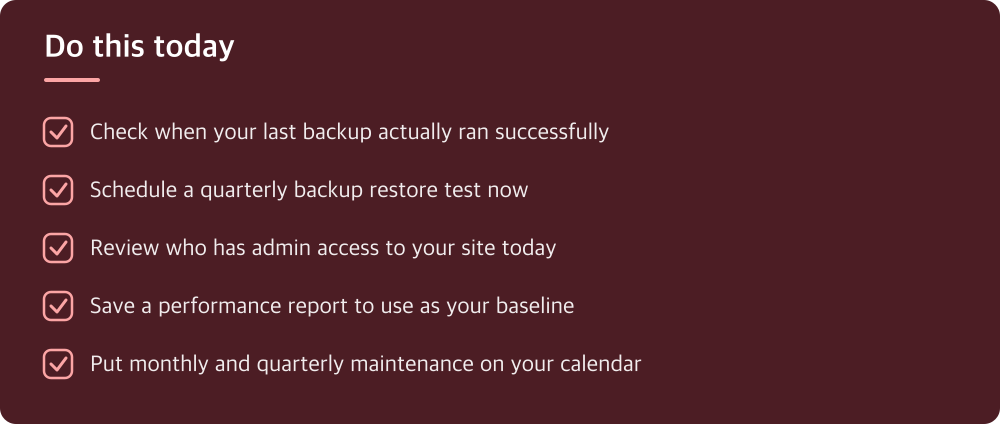
Today, before anything else: confirm your backup actually exists and open your host’s dashboard to check when it last ran successfully. That single check catches the most common and most damaging maintenance failure, which is discovering the backup was broken only after you needed it.
Do this today
- Check when your last backup actually ran successfully
- Schedule a quarterly backup restore test now
- Review who has admin access to your site today
- Save a performance report to use as your baseline
- Put monthly and quarterly maintenance on your calendar
※ This is informational and not a recommendation of any specific product or company.