

You already have backups running somewhere, probably. But a backup you’ve never restored is a theory, not a safety net. Here’s how to build a backup system that will actually save you when something breaks.
The backup you have is probably not the backup you think it is
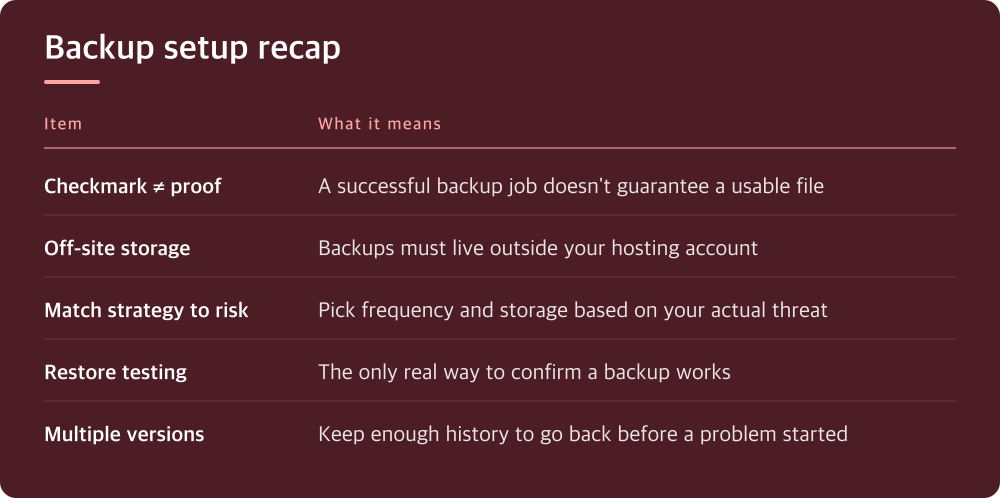
Most people set up backups once, during initial setup, and never look at them again. The job runs, a green checkmark appears, and that feels like enough. But a checkmark only tells you the job executed, not that the resulting file is complete, uncorrupted, or usable.
Plugins and hosting dashboards are good at reporting success even when the backup is partial. A database table that failed to export, a timeout that cut off a large media folder, a storage connection that silently stopped working weeks ago — none of these necessarily turn the status light red. The failure shows up only when you actually need the file and it won’t open or won’t restore cleanly.
This isn’t a reason to panic about your current setup. It’s a reason to stop trusting the checkmark and start verifying the actual output.
Decide what ‘recovery’ needs to mean before you pick a tool
Before comparing backup plugins or hosting features, get specific about what you’re protecting against. A hacked site, a bad plugin update, an accidental file deletion, and a server-level failure at your host are four different problems, and they don’t all need the same backup strategy.
If your biggest risk is a bad update or human error, you mainly need frequent file and database snapshots you can roll back quickly. If your biggest risk is your host disappearing or having an outage, you need backups stored somewhere completely separate from that host’s infrastructure. If you’re worried about a security breach, you need backups that predate the breach, since restoring a backup that already contains the malware doesn’t help.
Write down what scenario worries you most. That answer should drive your choice of backup frequency, storage location, and retention period, not the default settings a plugin ships with.
Where the backup lives matters more than how often it runs
A backup stored on the same server as your live site protects you from almost nothing. If that server fails, gets compromised, or gets suspended by your host, your backup goes down with it. This is the single most common mistake in backup setups: technically backing up, but to a location that shares the same point of failure as the original.
Look for an off-site destination — cloud storage, a separate hosting account, or a dedicated backup service that isn’t tied to your current host. Most backup plugins and hosting control panels let you connect an external storage destination; check your plugin’s settings or your host’s backup section for this option, since the exact steps differ by provider.
Frequency matters too, but less than people assume. A daily backup stored safely off-site beats an hourly backup sitting in the same account as your website. Once off-site storage is sorted, then tune frequency to match how often your content actually changes — a static brochure site doesn’t need the same schedule as a store processing orders every hour.
A restore test is the only proof your backup system works
This is the step almost everyone skips, and it’s the one that actually matters. Download or trigger a restore of a recent backup into a staging environment or a temporary test site — not your live site — and confirm the pages load, the database connects, and recent content is actually present.
Do this on a schedule, not just once. Backup systems quietly break: an API key expires, a storage quota fills up, a plugin update changes a setting. A restore test every few months catches these failures while you still have time to fix them, instead of discovering the problem during an actual emergency.
If your restore test fails, that’s useful information now, while nothing is actually broken. Figure out whether the backup file is incomplete, the restore process needs different steps, or the storage connection has an issue, and fix it before you’re relying on it under pressure.
Retention and versioning decide whether you can go back far enough
A single backup that’s always overwritten by the next one won’t help if you don’t notice a problem for a week or two. Malware infections and content corruption are often discovered well after they happen, so you need multiple backup versions stored across time, not just the most recent one.
Check how many versions your current setup actually keeps and for how long — this is usually in the plugin’s retention settings or your host’s backup panel. Compare that retention window honestly against how long it typically takes you to notice something is wrong on your site.
If you only keep the last day or two of backups, consider extending that window. Storage costs for keeping more versions are usually modest compared to the cost of only having corrupted backups to restore from when you need one most.
What to actually do today
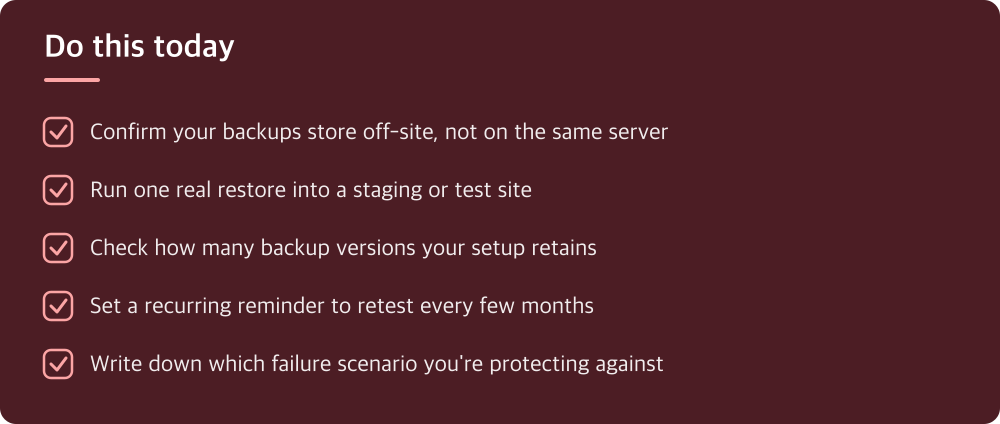
Start by finding your current backup’s storage location and confirming it’s genuinely off-site, separate from your hosting account. If it isn’t, that’s the first thing to fix, before worrying about frequency or anything else.
Next, do one real restore test into a staging site or a temporary environment. Don’t just check that a file exists — actually restore it and click around. This single test will tell you more about your backup system’s real reliability than any setting you could check.
Finally, put a recurring reminder on your calendar to repeat that restore test every few months. Backup systems aren’t ‘set and forget’ — they’re more like smoke detectors, worth a periodic check even when nothing seems wrong.
Do this today
- Confirm your backups store off-site, not on the same server
- Run one real restore into a staging or test site
- Check how many backup versions your setup retains
- Set a recurring reminder to retest every few months
- Write down which failure scenario you’re protecting against
※ This is informational and not a recommendation of any specific product or company.