

When something breaks on your site, you’ll want to know what happened. Most people discover this too late—after an incident, when they realize they weren’t logging the right things. The logs you keep now determine what you can figure out later.
You can’t debug what you didn’t record
The moment something goes wrong is the worst time to decide what information matters. By then, the events have already passed. You need a logging strategy in place before you need it, which means deciding now what gets recorded and how long to keep it.
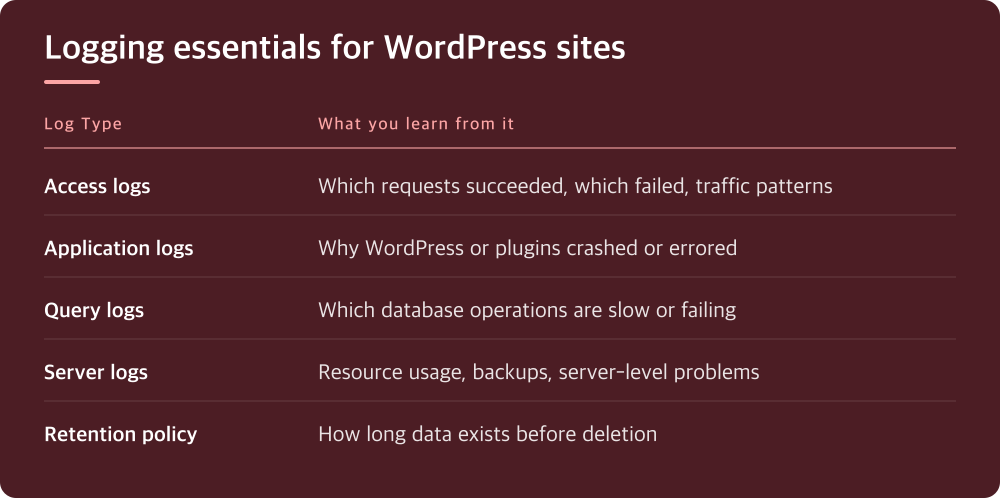
Think about what you’d actually want to know if a problem happened: when it started, what was different, what failed, what tried to fail. For WordPress sites, this means application logs, database query logs, and web server access logs. For hosted infrastructure, it means knowing what your hosting provider logs automatically and what you need to enable yourself.
The logs themselves are cheap storage. The expensive part is the time you waste later searching through incomplete or missing information. A few minutes setting this up now saves hours of guessing.
Access logs show you the actual traffic pattern
Every HTTP request to your site creates an access log entry. These entries record the IP address, timestamp, what page was requested, whether it succeeded or failed, and how long it took. When someone reports a weird problem at 2 PM, the access logs tell you exactly what requests were being processed at that time.
Access logs are noisy. Thousands of legitimate requests get recorded alongside bot traffic, failed requests, and redirects. The noise is exactly why you need them—a spike in 404 errors or requests from a single IP might be the explanation for slowness or a security incident.
Check what your hosting provider logs by default. Many hosts keep access logs for 7-30 days. That’s usually enough to investigate something reported within a week, but verify your own situation. If you run your own server, enable access logging in your web server configuration and set a reasonable retention policy based on your storage.
Application errors need their own log file
WordPress and most web applications can write detailed error logs. These are different from web server access logs—they record what the application itself was doing when something went wrong. A database connection failure, a plugin conflict, a memory limit being hit—these show up in the application log.
Enable WordPress debugging by setting the right configuration in wp-config.php. There are hosting provider guides for this specific task; the exact steps vary by host, so check your control panel documentation rather than guessing. Once enabled, error logs go to a specific file you can review.
The key difference from access logs is detail. An access log might show that a request returned a 500 error. The application log shows why—maybe a plugin tried to access a function that doesn’t exist, or a database query timed out. When you’re actually investigating, the application log is often where the answer lives.
Database queries reveal whether slow code is the culprit
When a page is slow, you need to know: is the server struggling, is the code inefficient, or is the database taking forever? Database query logs show every SQL query, how long it took, and whether it completed successfully. Slow queries are the signature of posts that take 5 seconds to load.
Database logging can be enabled at the server level, but it has performance overhead—recording every query takes resources. Most hosting providers don’t enable this by default. Check your hosting panel to see if query logging is available and what the performance impact is in your specific environment.
The practical approach: enable query logging temporarily when you’re actually investigating performance. Run it for an hour or a day while you reproduce the slow behavior. This keeps the overhead low while giving you the data you need. Then disable it when you’re done. If you run WordPress, some optimization plugins can log slow queries without the full overhead of logging everything.
Your hosting provider’s server logs complete the picture
Beyond what happens inside WordPress, your hosting provider maintains logs about the server itself: CPU usage, memory, disk space, backup results. When something breaks, the server logs often show resource limits being hit or a failed backup that went unnoticed.
Check your hosting control panel for available logs and what retention policy they use. Different providers keep different things and for different lengths of time. Some retain detailed metrics for 7 days, others for months. Know what yours does so you’re not surprised when you need it.
Server-level logs are also where you’ll see issues that WordPress can’t report—like your server running out of disk space, or a backup that failed silently. These problems can cause weird behavior that points nowhere until you check the actual server logs.
Start logging today, not after the next incident
The goal isn’t to keep everything forever. It’s to keep enough of the right things long enough to investigate what actually goes wrong. Decide what you need based on your site type and what problems would matter most to you.
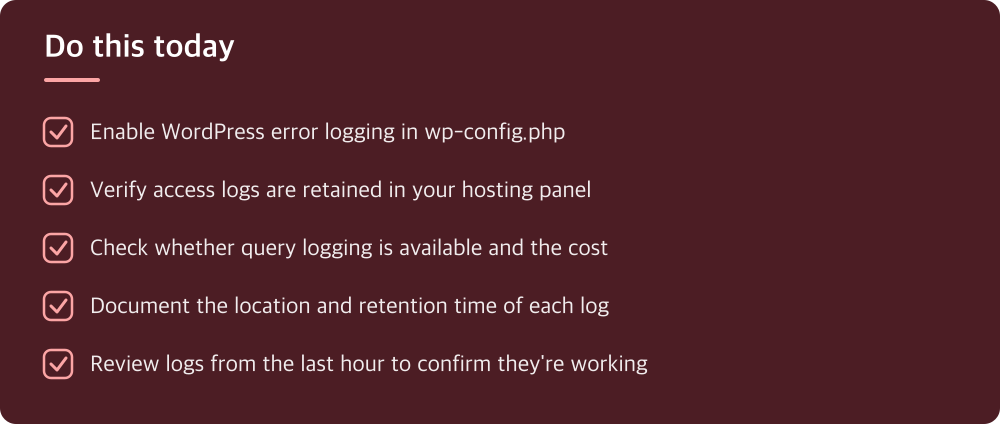
For most sites: enable WordPress debugging, verify that access logs are being kept, and check what server logs are available in your hosting panel. Write down the log file locations and retention policies. This takes maybe 15 minutes and makes investigation possible instead of impossible.
Tomorrow, when someone reports a problem or you notice something wrong, you’ll have the data to figure it out. That’s the entire point.
Do this today
- Enable WordPress error logging in wp-config.php
- Verify access logs are retained in your hosting panel
- Check whether query logging is available and the cost
- Document the location and retention time of each log
- Review logs from the last hour to confirm they’re working
※ This is informational and not a recommendation of any specific product or company.