

You don’t think about exporting your content until the day you need to leave a host or platform in a hurry, and by then it’s often too late to do it cleanly. Building an exit plan now, while nothing is on fire, is what actually keeps you in control.
Lock-in happens quietly, not all at once
Most lock-in isn’t a deliberate trap, it’s just the accumulation of small conveniences. You use the host’s built-in caching plugin, their proprietary page builder, their custom database setup, and one day you realize none of it moves cleanly to another provider.
This matters because the moment you most need to leave, whether it’s a price hike, a security incident, or a host that’s gone downhill, is the moment you have the least patience for a complicated migration. Planning your exit before you need one is the only way to keep the option open.
The fix isn’t avoiding convenient tools. It’s knowing exactly what each one produces, where that output lives, and whether it’s portable to a standard format you could hand to any other provider.
Your content and your platform are two different things
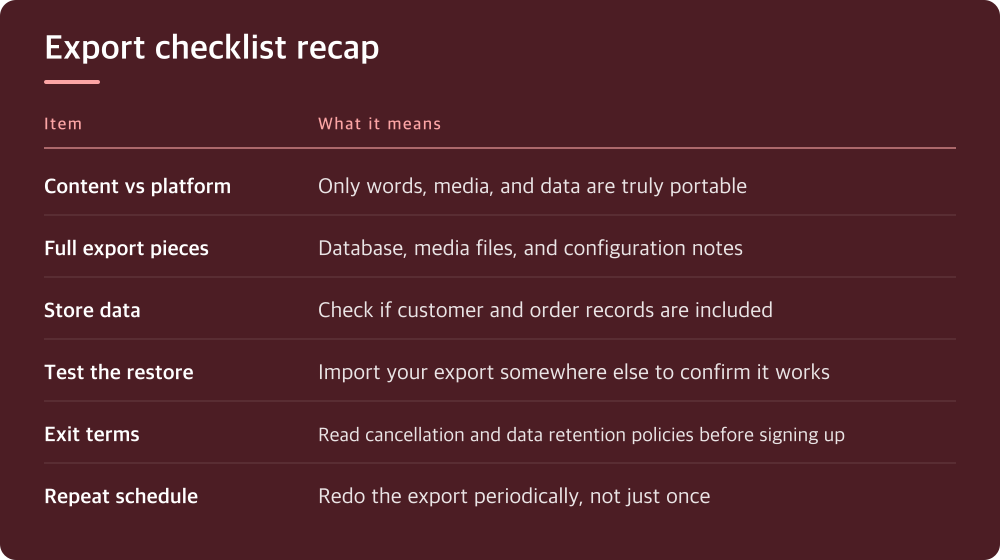
Separate in your head what is actually yours, the words, images, product data, customer records, from what belongs to the platform, the theme, the plugin configuration, the specific way a builder renders a page. Only the first category is content in the portable sense.
If you’re on WordPress, the database holds your posts, pages, and settings, but the site’s look and feel depends on theme and plugin choices that may not exist elsewhere. Exporting the database is necessary but not sufficient if you also depend on a proprietary builder that stores content as widget blobs instead of readable text.
Check what format your page builder or CMS actually stores things in. Some export to clean HTML or Markdown, some export to a format only that tool can read back. If you can’t open your export in a plain text editor and make sense of it, that’s a warning sign.
A real export is more than clicking one button
A complete export usually has several separate pieces: the database, the media library, any custom code or configuration, and account-level records like customer or order data if you run a store. Missing any one of these turns your backup into a partial one.
For WordPress specifically, this generally means an XML or database export for content, a separate download of the wp-content/uploads folder for media, and a note of which plugins and theme you’re running so you can recreate the setup elsewhere. Check your host’s control panel or your CMS’s export tool for exactly what’s included, because this varies by provider and by plugin.
If you run an online store or collect any user data, check whether your export includes customer records, order history, and any custom fields. These often live in separate database tables that a basic content export skips entirely.
Don’t assume a plugin’s ‘export’ button gives you everything. Read what it actually claims to export, then verify by opening the file.
An export you haven’t tested is a guess, not a backup
The only way to know an export actually works is to import it somewhere else and see what breaks. This is the step almost everyone skips, and it’s the same mistake people make with backups generally: having a file is not the same as having a working copy.
Set up a free or low-cost staging environment, plenty of hosts offer one, or spin up a local install, and try restoring your export there. Look specifically for broken image links, missing custom fields, and formatting that didn’t survive the trip.
Do this at least once when you’re not under pressure. If your export fails silently, meaning it looks fine but leaves out data, you want to discover that on a Tuesday afternoon, not during an actual migration deadline.
Check the exit terms before you need to use them
Every host and platform has some version of terms covering what happens to your data if you cancel or if they suspend your account. Read this before you sign up somewhere new, not after something goes wrong.
Look specifically for how long they retain your data after cancellation, whether they charge a fee for exports or migrations, and whether certain plan tiers restrict export access entirely. These policies vary a lot between providers, so check your specific host’s documentation rather than assuming.
If a platform makes exporting deliberately hard, buried menus, no bulk export, paywalled downloads, treat that as information about how they operate generally, not just about exports.
What to actually do this week
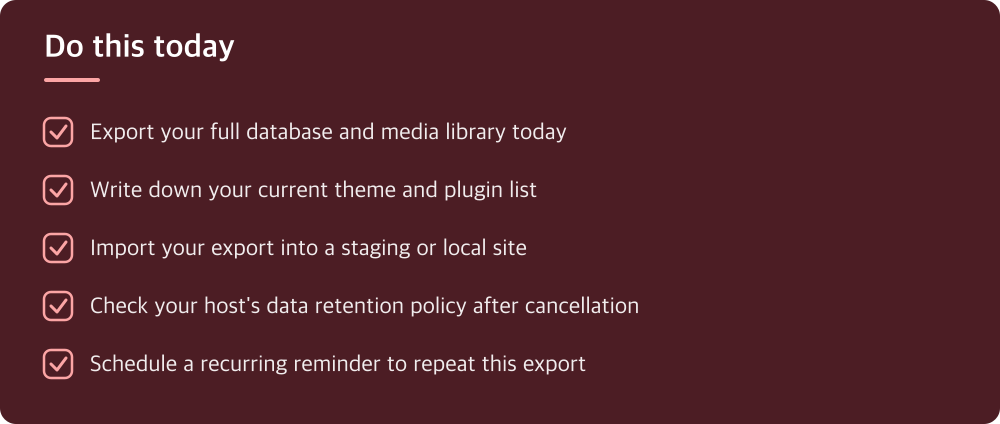
Pick one weekend or evening and do a full export of everything: database, media, and a written note of your theme and plugin setup or platform configuration. Store it somewhere other than the host itself, a cloud drive or external drive works fine.
Then test it. Import that export into a staging site or local environment and click through a handful of pages, checking images and forms. If something’s broken, you want to know now.
Put a reminder on your calendar to repeat this every few months, or automate it if your host or CMS supports scheduled exports. An export from eighteen months ago is barely better than nothing if your site has changed significantly since.
Do this today
- Export your full database and media library today
- Write down your current theme and plugin list
- Import your export into a staging or local site
- Check your host’s data retention policy after cancellation
- Schedule a recurring reminder to repeat this export
※ This is informational and not a recommendation of any specific product or company.